

Handbook
About Saenya
How each part of Saenya works, for fiction and non-fiction alike: reading, writing, versions, and working with other people.
Introduction
What Saenya is, and how this handbook is laid out.
In this section
- Saenya in brief
What Saenya is for, and the ideas the handbook builds on.
- Using this handbook
How the sections are ordered, and where to start.
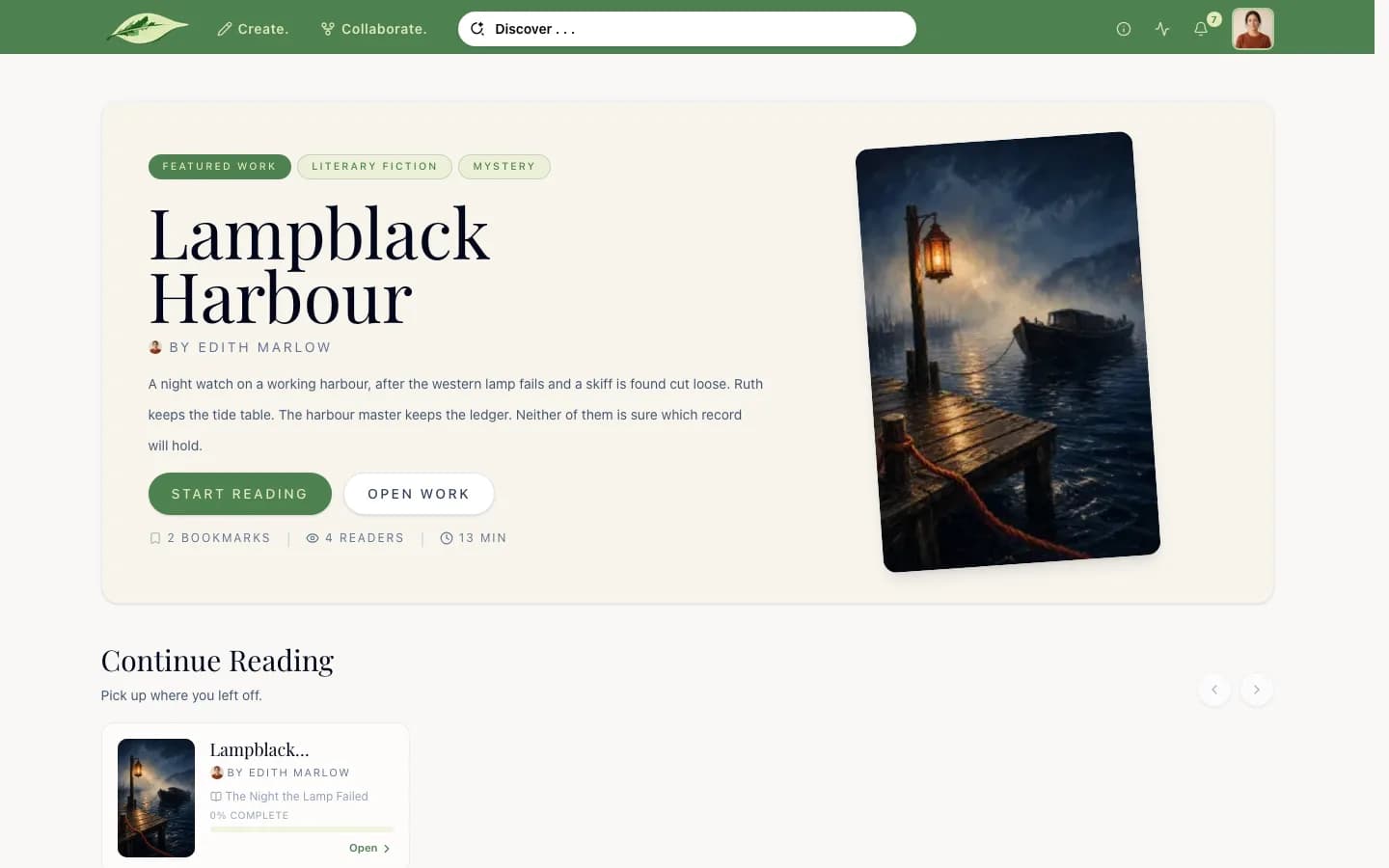
Saenya in brief
Saenya is a platform where you can read, write, and collaborate on written works. A work can be a novel, a short story, an essay or article, a set of poems, or anything else you want to publish.
Fiction and non-fiction work the same way: a field guide or a course reader has versions and merge requests just as a novel does.
A work holds one or more versions. Each version holds files, the parts a reader opens one at a time, and can sort them into folders. One version is the Canon: the work owner's main version, and the one readers get when they open the work.
Other writers can make their own version, edit it, and ask for their changes to be taken into the version they started from. The owner of that version decides what goes in. The Canon only changes when the work owner accepts it.
The glossary defines the terms used here. It sits beside the page on wide screens, and behind the Glossary button on smaller ones.
Using this handbook
The sections follow the order most people meet Saenya in: getting started, reading, writing, working with others, and finally privacy and safety.
- To read, start with Getting started and Reading, then Reading lists and Your profile.
- To write, continue with Creating works and The editor.
- To work with other writers, read Versions and Collaborating. Create and Collaborate covers the two pages that collect work in progress.
- For who can see what, see Visibility at a glance.
Words in bold are labels as they appear on screen. A few labels still say "story", such as Read a story on the Saenya 101 checklist. They apply to any kind of work.
Getting started
Making an account, signing in, and learning the pages.
In this section
- Creating an account
Email or Google sign-up, verification, and what waits for it.
- Signing in
Login codes, trusted browsers, and resetting a password.
- Welcome and profile setup
The optional setup that follows sign-up.
- Saenya 101
The checklist on Home, and how to hide it.
- Guided tours
Which pages have a tour, and how to replay one.
- Finding your way
The navbar, the account menu, and the phone layout.
Creating an account
Choose Sign up. You can register with a username, an optional display name, an email address and a password, or with Sign up with Google.
A password needs at least 8 characters and must rate at least "Fair" on the strength meter. Your name, username and email count against its strength.
An email sign-up sends a verification link that works for 24 hours. A Google account is verified straight away. An account that is never verified is removed after 7 days.
Until you verify, you can browse and read, set up your profile, and receive notifications. Actions that create or change something, such as making a work, a version or a reading list, commenting, reacting, bookmarking and following, stay off and say "Verify your email to …". A banner at the top of each page can resend the link.
Signing in
Sign in with your email and password, or with Sign in with Google.
On a browser Saenya does not recognise, a password sign-in also asks for a 6-digit code sent to your email. The code lasts 10 minutes. Tick Trust this browser to skip the code there afterwards. Trust ends if the browser goes 30 days without signing in. Verifying your email in a browser also trusts it.
A Google sign-in does not ask for a code. When it comes from a new browser, Saenya emails you about it instead.
Forgot password? emails a code that lets you set a new password. Resetting signs your account out everywhere.
Admin and system accounts are the exception: they need a code at every sign-in, Google included, and their browsers are never trusted.
Welcome and profile setup
After you sign up, Saenya offers a short Welcome setup. Every step is optional, and everything in it can be changed later.
- Who you are: a picture, your username, a display name, and a bio.
- What you read: up to eight themes. These shape your recommendations.
- Your links: links to show on your profile.
- Your profile: a banner, what sits beside it, and whether your activity on private works shows (without their names).
Finish saves what you entered. Skip for now leaves the rest blank. Either way, the setup does not come back.
Saenya 101
Saenya 101 is a checklist on Home for new accounts. Each task opens the page where it happens and highlights the control to use.
- Verify email resends the verification link.
- Set up profile asks for a picture, a banner, a bio and at least one theme.
- Read a story opens a popular work.
- Follow a writer opens the Saenya Library profile.
- Bookmark, comment, or like opens a work to respond to.
- Join a reading list opens an open list.
- Branch a classic opens a Library book, to make your own version of it.
- Create a work opens the New Work wizard.
Until you verify your email, only the first two tasks are available. Tasks tick themselves off as you do them. The checklist goes away once every task is done, or when you close it with Dismiss Saenya 101.
Guided tours
Five pages have a short tour: the work page, the reader, the editor, a profile, and a reading list. Each starts by itself the first time you open that kind of page after setup.
Move through a tour with Next and Back, and end it with Done or Skip tour. Either way it does not start again on its own.
To see a tour again, open the account menu on that page and choose Replay tour. The item only appears on pages that have one.
Finding your way
The navbar holds:
- The Saenya logo, which goes to Home.
- Create. and Collaborate., the two pages for work in progress. See Create and Collaborate.
- The search field, "Discover . . .".
- Activity, with the number of new items in your feed.
- Notifications, with the number you have not read.
- The info icon, which opens this handbook.
- The account menu: Profile, Activity log, Settings, Replay tour where a page has one, and Sign out.
On a phone, Create and Collaborate shrink to icons, Activity and Notifications sit beside the search field, and the handbook moves into the account menu. Signed out, the account menu, Activity and Notifications are replaced by Sign up, with the info icon beside it. On a wide screen Sign in is there too; on a phone, the Sign up page links to sign in.
The footer links to this page, the Content Guidelines, the Terms of Use, the Privacy Policy and the contact form.
Reading
Finding works, reading them, and responding to them.
In this section
- Finding works
Home shelves, search, and the Saenya Library.
- The work page
Cover, stats, the version rail, and the tabs.
- The reader
Turning pages and moving between files.
- Reading preferences
Font, spacing, width, theme and gestures.
- Files, paths and the File graph
The file menu, read badges, alternate paths, and the graph.
- Footnotes and images
How notes open and how images sit on the page.
- Progress and Continue reading
What is tracked, and where you pick up again.
- Reactions, comments and sharing
Reactions on files, comment threads, and share links.
Finding works
Home opens with a featured work, then shelves:
- Continue Reading: works you started and have not finished.
- Works For You and Reading Lists for You: picked from what you read, bookmark and follow, and from your themes. Works you own or have already read or bookmarked are left out.
- Popular Works and Popular Reading Lists: the most read works, and the lists people join most.
- Trending Now: works with the most reads in the last 7 days.
- Newly Published and Recently Updated.
- A shelf per theme you chose, and More in … shelves for themes close to what you read. See more opens a search for that theme.
The search field, "Discover . . .", looks through works, people and reading lists. Results can be narrowed to Works, Users or Reading Lists, and shown as a grid or a list.
The Saenya Library is a profile of public-domain books from Standard Ebooks. They read like any other work, and you can make your own version of one.
The work page
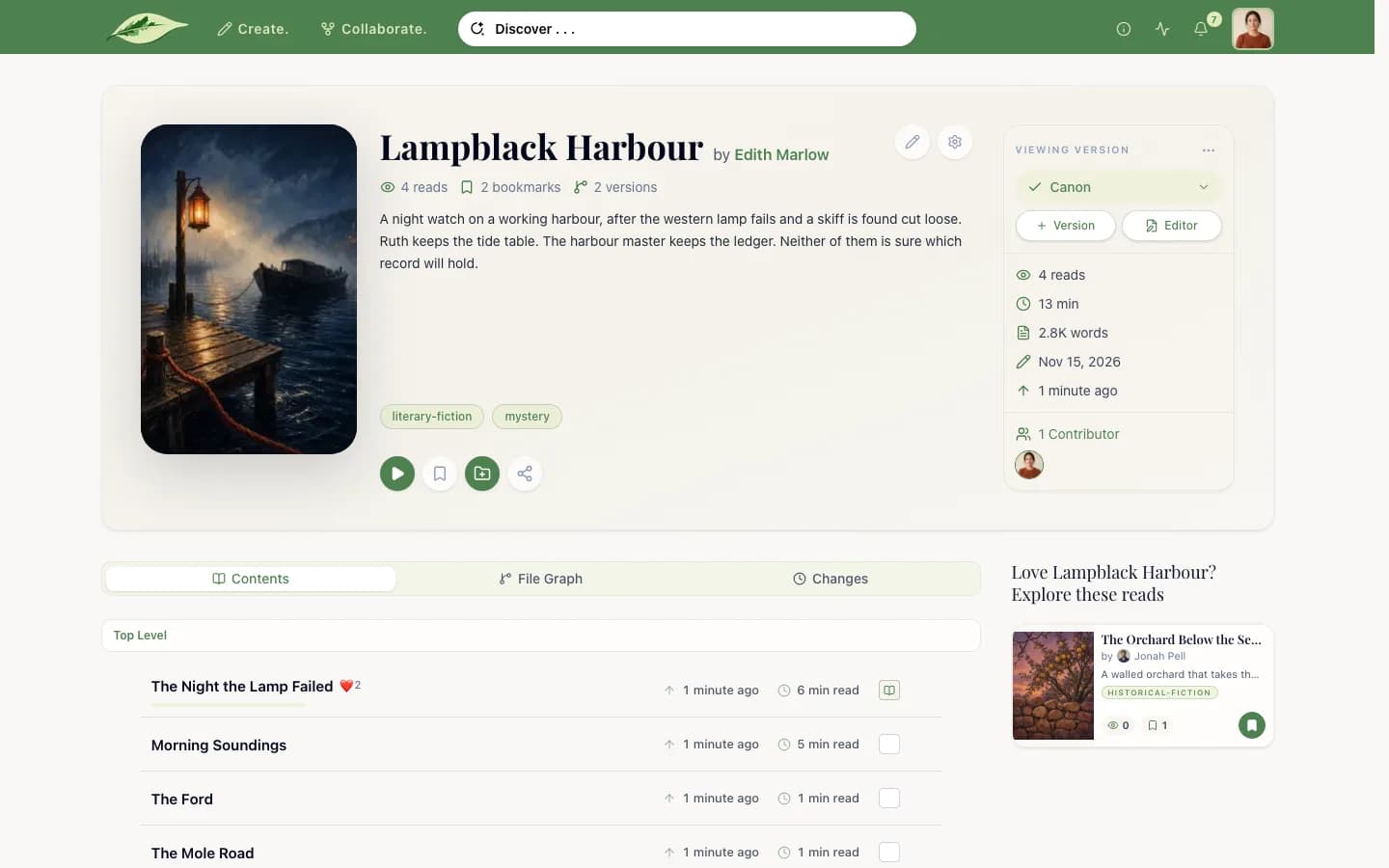
A work's page shows its cover, title, author, description and themes, with counts of reads, bookmarks and versions. Under the cover:
- Start reading opens the first file. Once you have started, it reads Resume reading and opens where you stopped. A bar shows how much of the Canon you have read.
- The bookmark button, Add to list and Share.
The Viewing version rail on the side picks which version you are looking at. The Canon comes first, then the most read. For the chosen version it shows reads, reading length, words, when it was created and last changed, and its contributors. Version makes a new version, Editor opens it for editing if you may, and the menu has Version graph and See all versions.
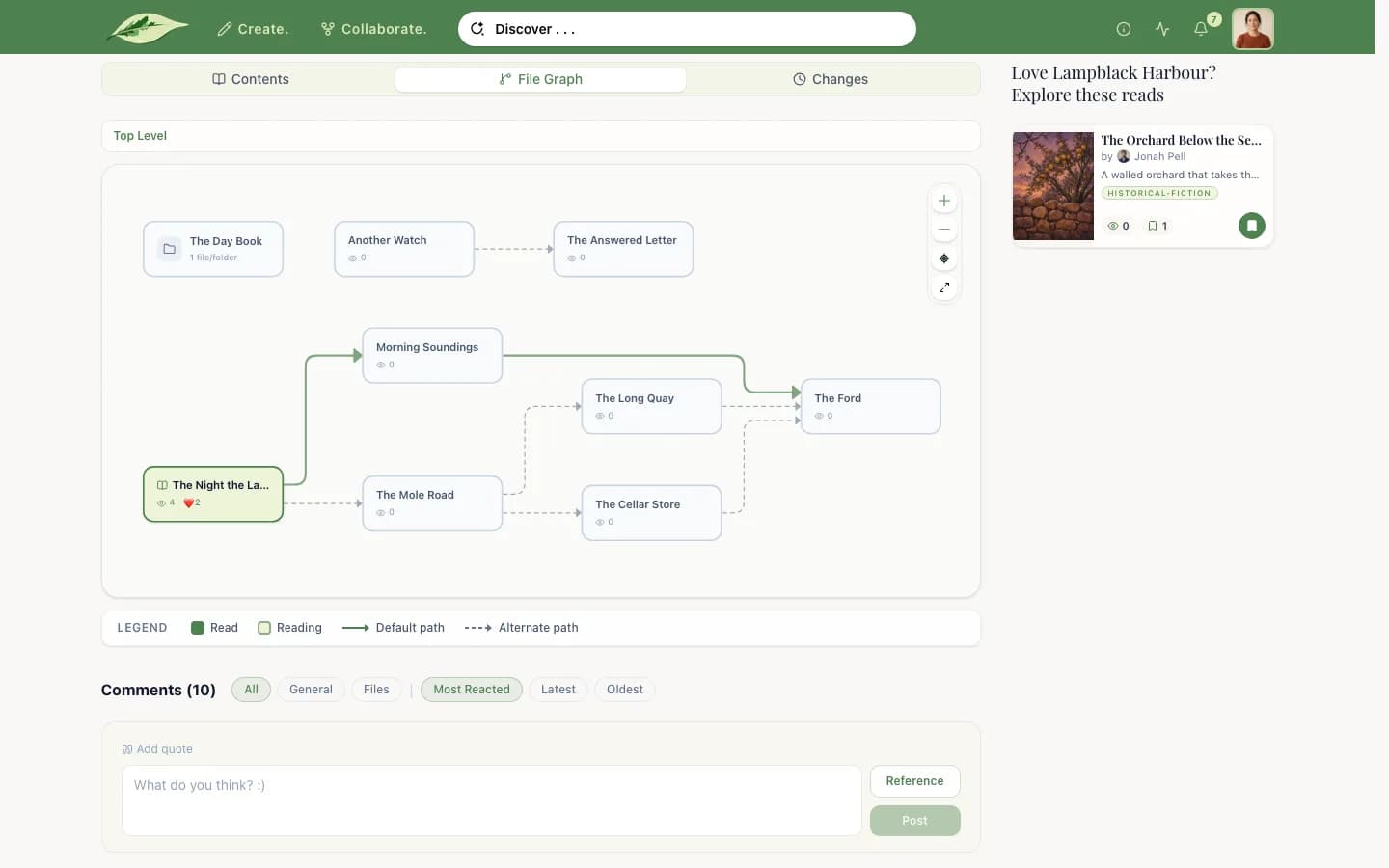
Three tabs sit below: Contents lists the files, File Graph draws how they connect, and Changes is the version's published history. Comments follow, filtered by All, General or Files.
The reader
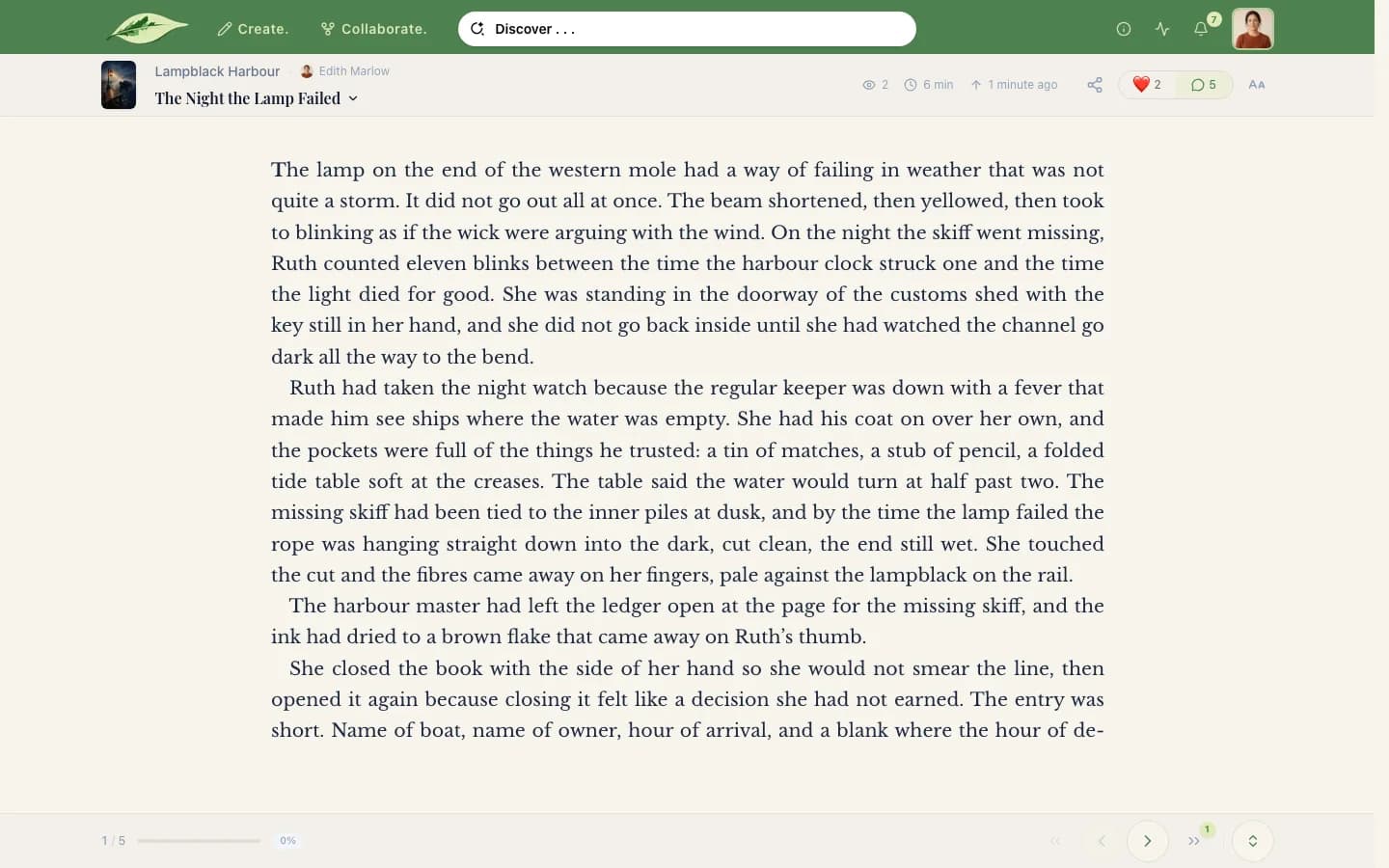
The reader shows one file at a time, split into pages. The bar at the bottom has Previous file, Previous page, Next page and Next file, with the page number and how far through the file you are.
- Keyboard: Left, Up or Page Up goes back; Right, Down or Page Down goes forward. Escape closes a panel or leaves full screen.
- Tapping: with Gestures on, tapping the outer quarter of the page on either side turns the page.
- More room: Expand and Full screen hide the site's navbar.
When a file leads to more than one next file, the reader follows the default path and offers the others. On a computer, the reader's header also has Share.
Reading preferences
Reading preferences in the reader's header sets how text looks:
- Font: serif, sans-serif, accessibility and system faces.
- Size, from 12 to 32.
- Lines (line spacing), Paras (space between paragraphs) and Indent.
- Align: Justify or Left.
- Gestures: whether tapping the page edges turns pages.
- Width: Narrow, Regular or Full, on wider screens.
- Theme: Light, Sepia or Dark.
The settings are kept in your browser, and apply to every work you read there.
Files, paths and the File graph
The file menu in the reader's header lists the files at your current level. Folders open into their contents. Each file has a badge: Read, In progress or Not read.
A work does not have to run in a straight line. A file can lead to more than one next file, paths can meet again, and a file can stand apart. The default path is listed first; a chevron opens the alternatives, and a file off the default path is marked On alternate path.
File graph opens the whole shape: files are nodes, arrows are the links from one file to the next, and folders open in place. Choosing a file opens it in the reader. The work page's File Graph tab draws the same graph.
Footnotes and images
A footnote marker opens the note in a panel at the bottom of the screen, so you keep your place on the page. The notes are also listed at the end of the file.
Images sit in the text with their caption, sized to fit the page.
Progress and Continue reading
When you are signed in, Saenya saves how far you got in each file and which version you read it in.
- Where you resume: the most recent place you can still open, in any version.
- The percentage on a work page counts the Canon only, weighted by each file's length.
- Continue Reading on Home lists works you have not finished. Hiding one there keeps it in your profile's Library → Reads.
Reactions, comments and sharing
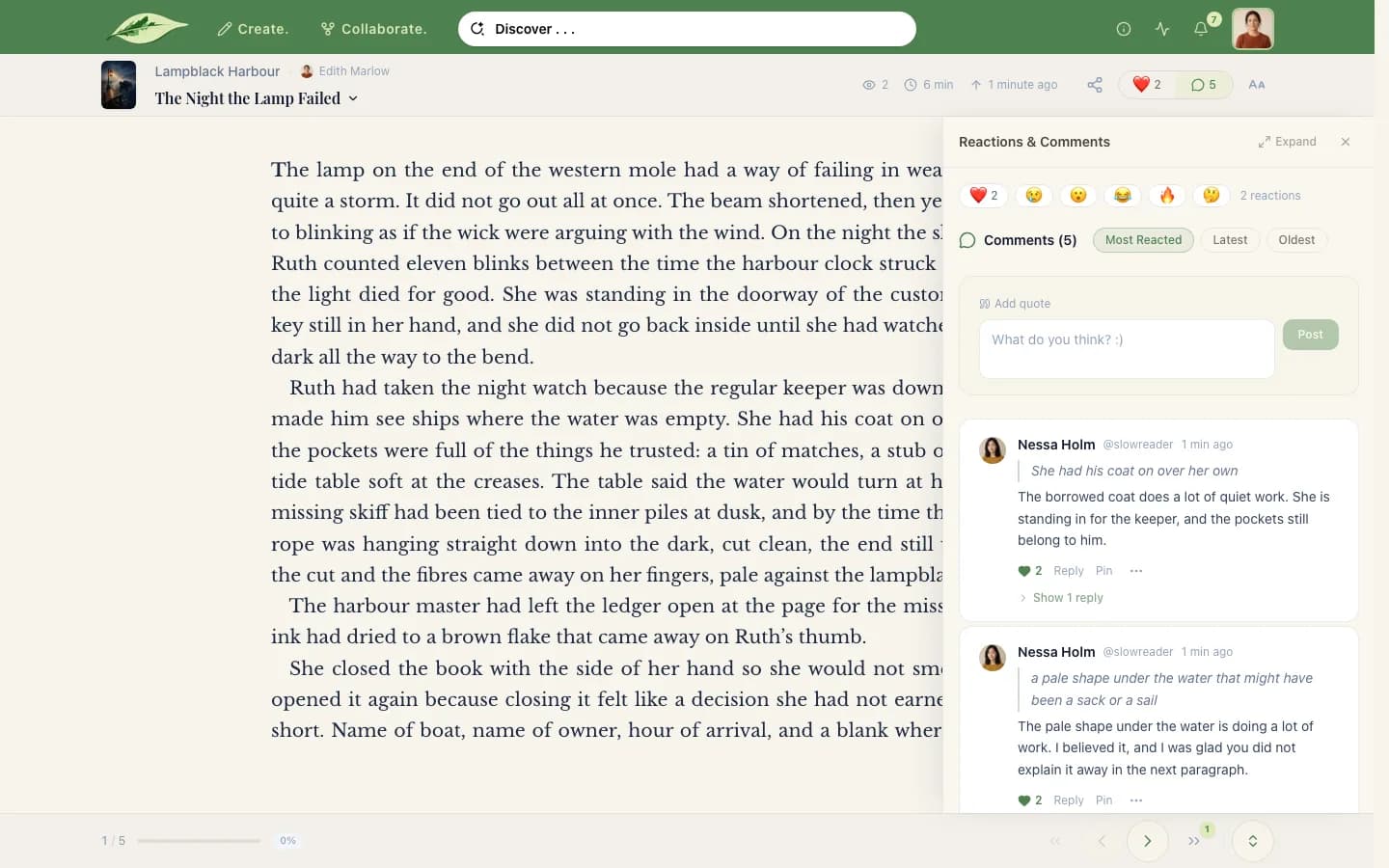
Reactions. A file takes one of six reactions: Love, Fire, Wow, Funny, Sad or Thoughtful. Tap the face for Love, or hold or hover it for the others. Comments take a seventh, a like.
Comments. You can comment on the whole work or on one file. To comment on a passage, select it and choose Include in comment; the quote stays with the comment. Threads take replies and likes. You can edit or delete your own comments. The owner of a work or a reading list can pin a thread to the top.
Sharing. Share copies a link or posts it to X, Facebook, LinkedIn, Reddit or Bluesky. You can share a work or a single file; private works cannot be shared. The link's preview card shows the cover, title, author, description and counts. A file's card adds its name and its opening lines.
Reading lists
Collections of works that you curate and discuss.
In this section
- Creating a list
Name, description, and the three visibilities.
- Managing books
Adding, removing and reordering works.
- Joining and requests
Joining, asking to join, and inviting people.
- Members and discussion
Who is in a list, and who can post.
- List settings
Every tab of a list's settings.
- The updated date
Which actions move a list's date, and which do not.
- Popular lists
How lists are ranked, and where they appear.
Creating a list
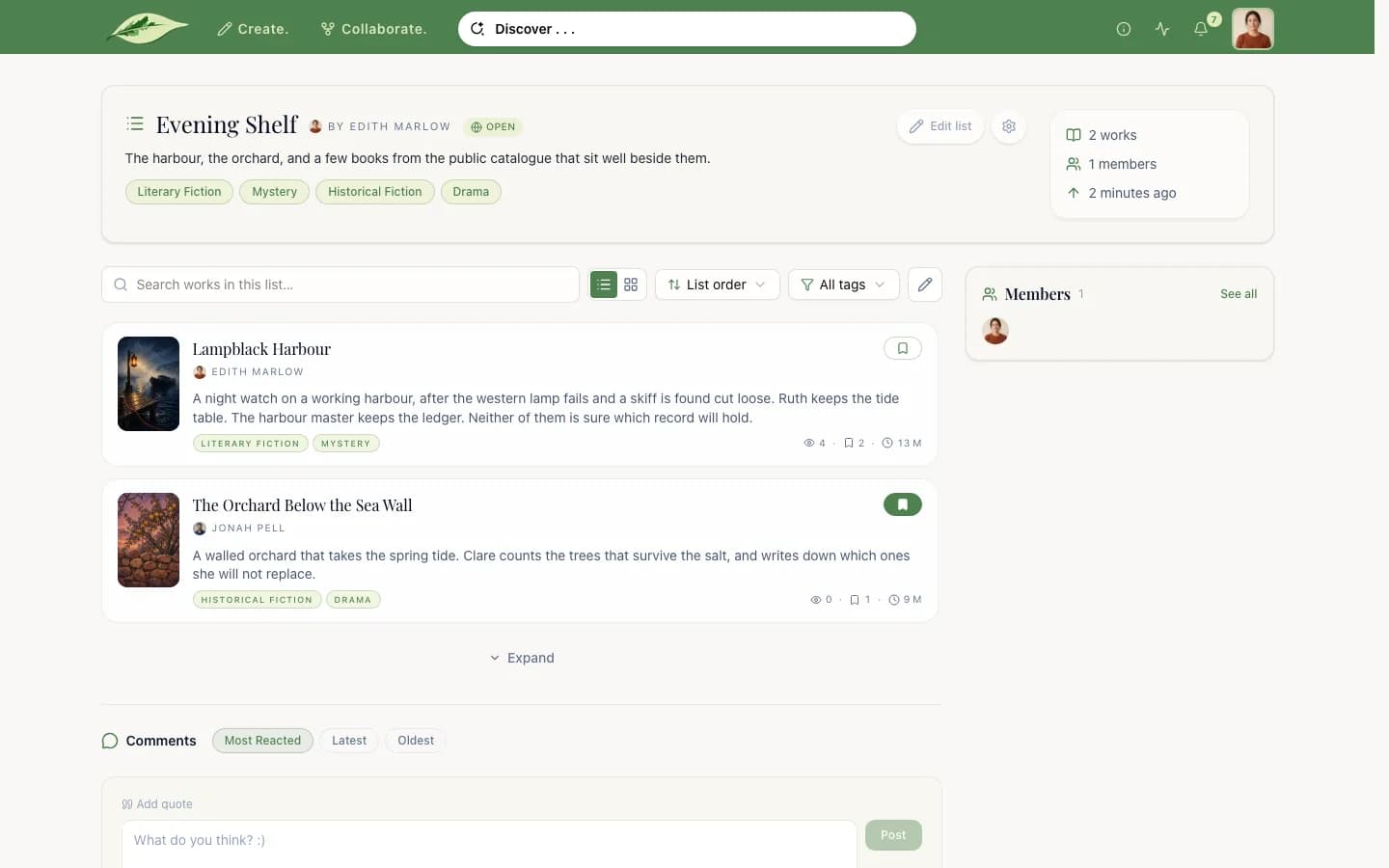
A reading list is a collection of works in an order you choose: a series, a syllabus, a theme, a shelf to share. Lists can mix your own works with anyone else's public works, including Library books.
Start one from the Reading List tile on the Create page. The form has three steps: Basics, Works, and, for gated and private lists, Members. A list needs a name (up to 120 characters) and can have a description (up to 4,000). Its visibility is one of:
- Public · Open: anyone can see the books and the discussion. Readers join at once to post.
- Public · Gated: anyone can see the books, but the discussion is for members. People ask to join, and you approve them.
- Private: only you and the members can see the list at all.
Managing books
- From a work's page: Add to list shows your lists. Tick the ones that should include the work, then Save.
- From the list: Edit works opens the list's Works settings. Search for any public work to add it, drag the handle or use the arrows to reorder, and remove a work with its remove button.
Only the list's owner can change its books.
Joining and requests
- Open lists: Join to post makes you a member straight away.
- Gated lists: Request to join sends a request and shows Requested until the owner answers.
- Private lists: the owner invites people by username. An invitee sees Accept invite and Decline on the list, and the invitation on the Collaborate page.
The owner approves or declines requests in three places: the Membership requests panel on the list, the list's Requests settings, and the Reading Lists tab of the Create page. Leave takes you out of a list.
Members and discussion
The Members panel shows how many people belong to a list; See all lists them. The owner's roster splits them into Requests, Invited and Active, and can remove anyone.
Each list has its own discussion:
- Open lists: anyone can read it. Members can post.
- Gated and private lists: only members can read or post.
List settings
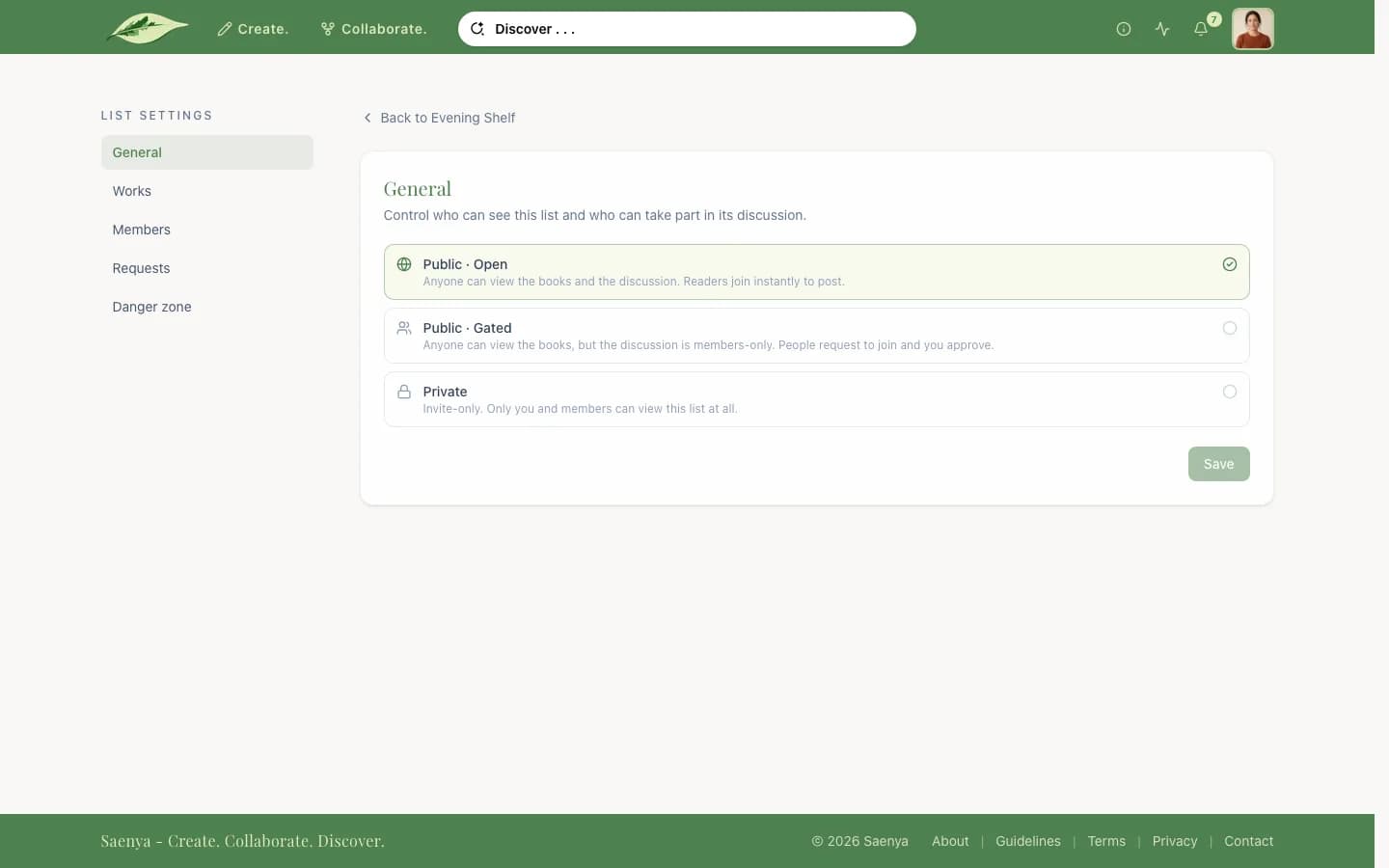
On a list you own, Edit list changes the name and description in place. List settings has five tabs:
- General: the list's visibility.
- Works: adding, removing and ordering books.
- Members: everyone who joined, plus Invite a reader.
- Requests: people waiting to be let in.
- Danger zone: Delete this list.
The updated date
The banner of a list shows how long ago it changed, with the tooltip "Last book added or removed". Only those two actions move the date. Views, joins, comments and reordering do not.
Popular lists
Popular Reading Lists on Home ranks lists by, in order:
- The number of members.
- The number of books a signed-out visitor could open.
- The number of comments.
- How recently a book was added or removed.
Reading Lists for You is picked differently: lists that share your themes, hold works you have read or bookmarked, or belong to people you follow. A list's page also has a Recommended panel of similar lists.
Your profile
What people see about you, and what you control.
In this section
- Overview, Works, Library and Activity
What each profile tab shows.
- Profile settings
Blocks, categories and activity privacy.
- Following
Following people, and what it adds to your feed.
- Activity log
Your private record of everything you did.
Overview, Works, Library and Activity
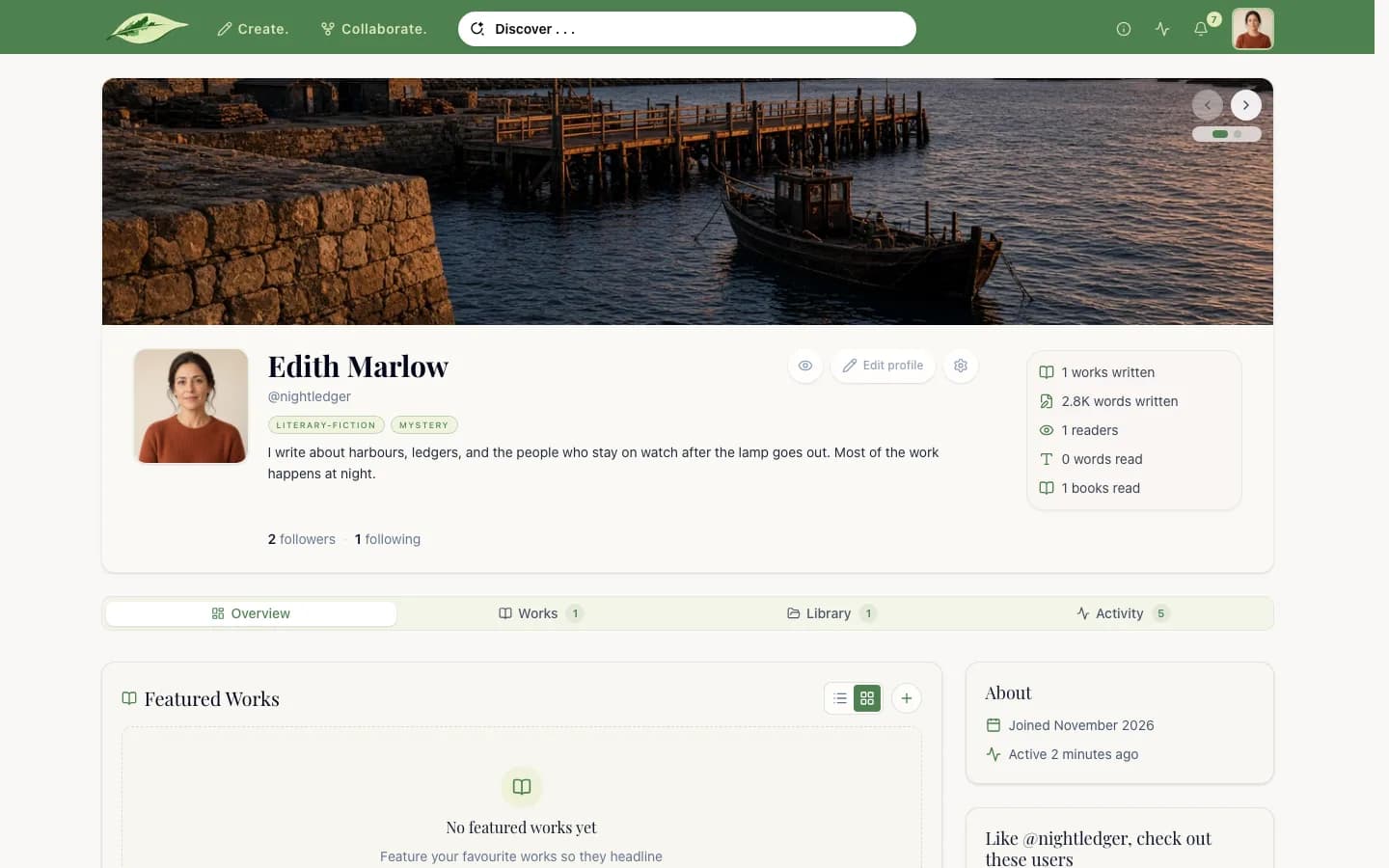
Your profile has your picture, banner, display name, username and bio. The display name can be your real name; the username is part of your address. Use Edit profile to change them. Below sit four tabs:
- Overview: the parts you choose to feature: works, reading lists, and an activity block. Feature works and Feature reading lists pick them.
- Works: every work you publish, and Contributions, the other people's works you have worked on.
- Library: your Reading Lists, plus Bookmarks, Memberships (lists you joined) and Reads.
- Activity: a calendar of activity and a list of it: new works, versions, changes, merge requests, merges, declined merge requests, resolved conflicts, new lists and works added to lists.
Profile settings
Settings → Profile decides what visitors see. You always see everything on your own profile; See your profile as a visitor shows the other view.
- Overview: show, hide and reorder the featured works, featured reading lists and activity blocks.
- Works categories: whether Contributions shows.
- Library categories: whether Bookmarks, Memberships and Reads show. Reads is hidden until you turn it on.
- Activity privacy: Public works only, or Include private works (names hidden), which shows that you were active without naming the work. You can also hide each kind of activity from your profile.
Following
Follow on a profile adds that person to your feed; Following undoes it. The counts on a profile open Followers and Following lists.
From people you follow, your activity feed shows new works, new versions, merge requests and merges, new reading lists and works added to them, comments, bookmarks and follows.
Activity log
Activity log in the account menu lists everything you did on Saenya, including reads and editing steps that never appear on your profile. Only you can see it.
Creating works
Starting a work, importing files, and its settings.
In this section
- The New Work wizard
Each step, from title to cover and settings.
- Importing Word files
What is imported, what is dropped, and the limits.
- Editing a work's details
Title, description, tags and cover.
- Work settings: General
Visibility, and who can read a private work.
- Work settings: Version control
Who can make versions of your work.
- Deleting a work
What the Danger zone removes.
- Downloading
Word downloads, and who can make them.
The New Work wizard
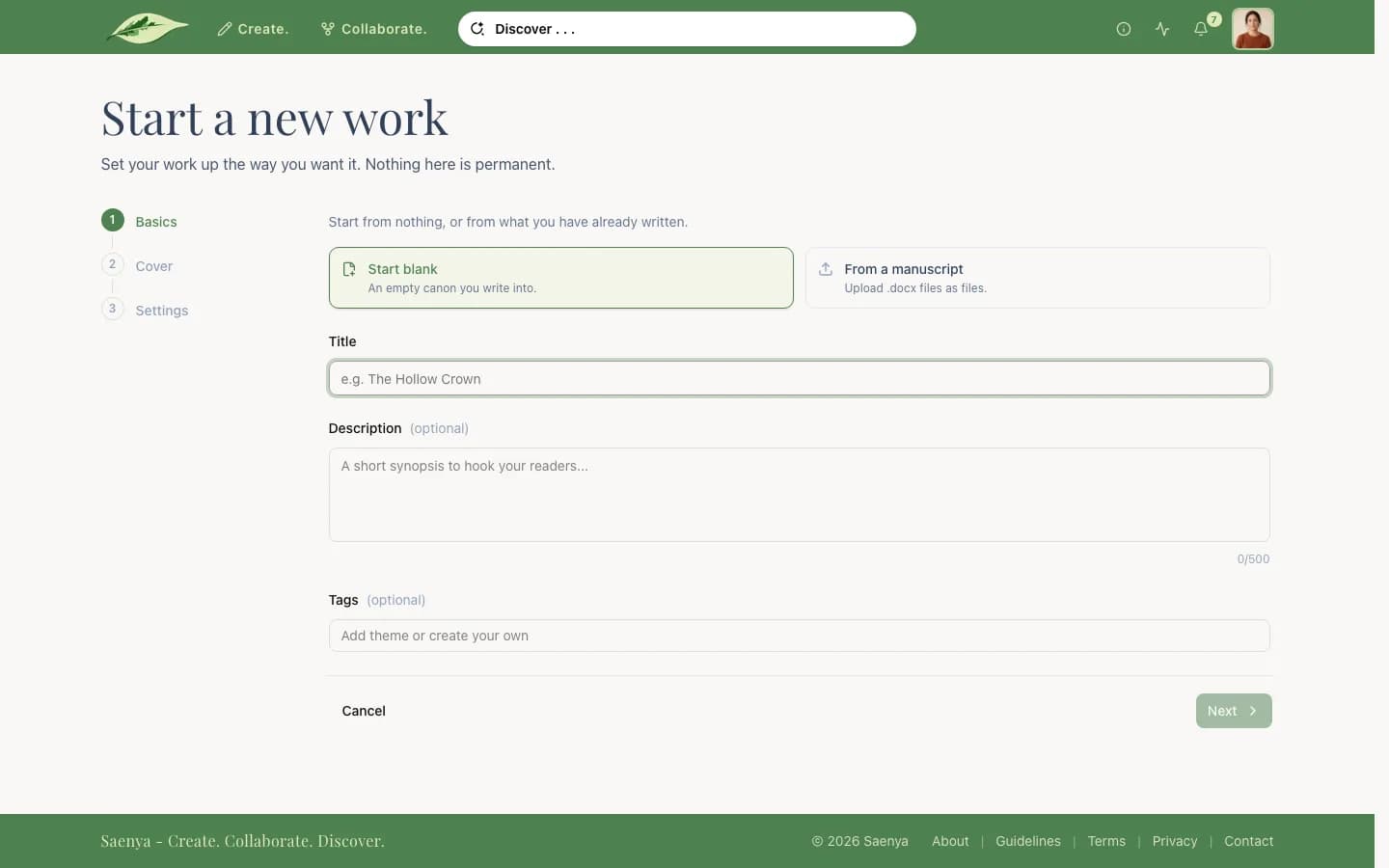
The New Work tile on the Create page opens a short wizard for any kind of work.
- Basics: Start blank for an empty Canon, or From a manuscript to upload Word files. Then a title (up to 120 characters), an optional description (up to 500) and up to eight tags.
- Manuscript (manuscripts only): upload files or a whole folder.
- What comes next (manuscripts with a folder of two or more files): say which file a reader reaches after each one. One file can lead to several.
- Cover: upload an image and crop it, or pick a colour for the default cover.
- Settings: the work's visibility and who can make versions, as on the General and Version control settings. A new work is public and open to versions from everyone unless you change it.
Create work makes the work and opens its page.
Importing Word files
Saenya imports Microsoft Word (.docx) files, from the New Work wizard or from Import in the editor's Files panel.
- Each .docx becomes one file, named after the file without ".docx".
- Uploading a folder keeps its folders.
- Bold, italic and tab indents carry over. Images are left out; add them again in the editor.
- Up to 50 files at a time, each up to 10 MB.
Editing a work's details
On a work you own, Edit on the work page changes its title, description, tags (up to ten) and cover in place. Save keeps the changes; Cancel drops them. The same row has Work settings for everything else.
Work settings: General
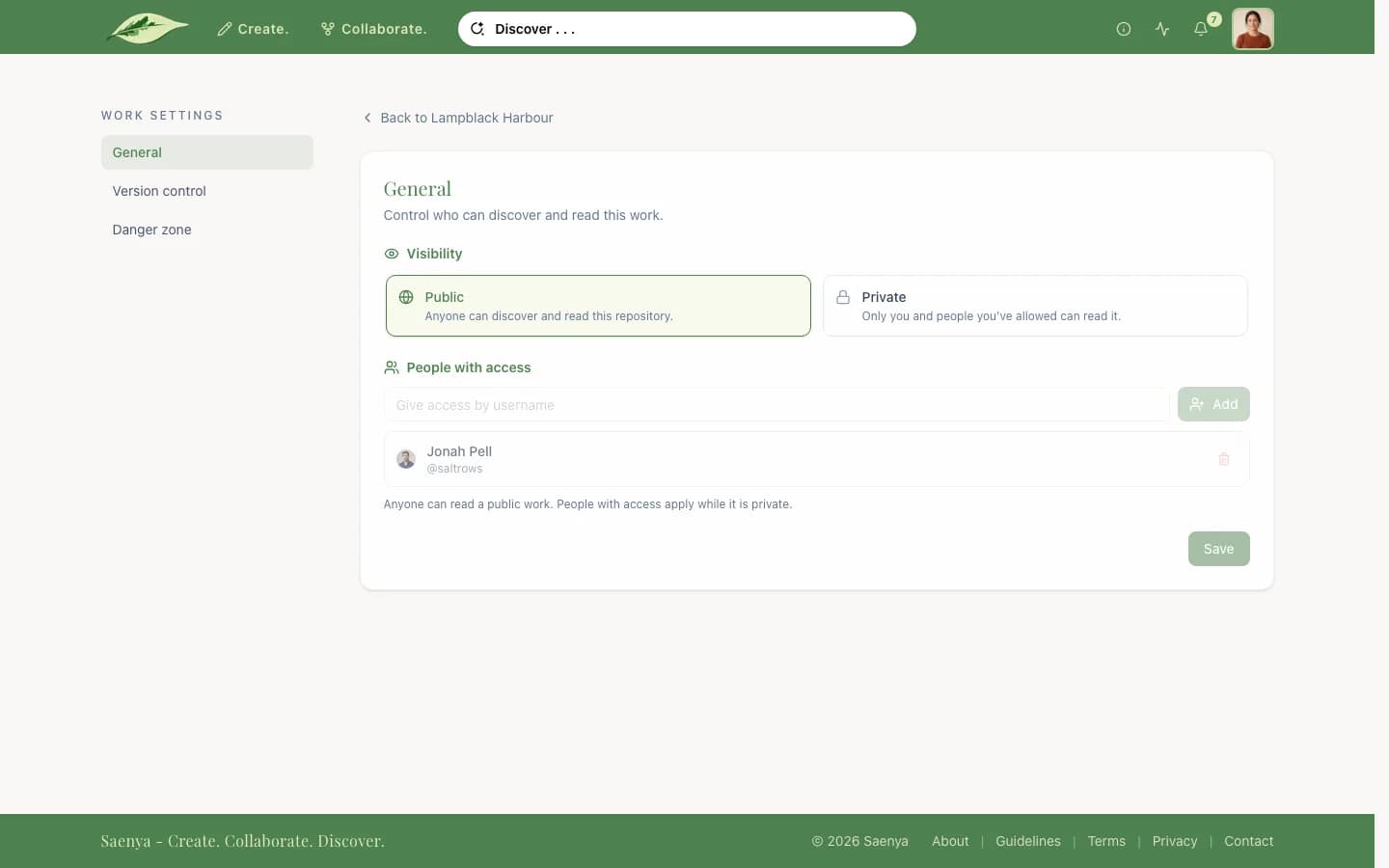
Work settings → General sets who can read the work.
- Public: anyone can find and read it, signed in or not.
- Private: only you and the People with access can read it. Give access by username. Removing someone also removes their ability to make versions.
Work settings: Version control
Work settings → Version control sets Who can create versions:
- Everyone: anyone signed in, or on a private work, anyone with access.
- Selected people: only the people you pick by username. On a private work you pick from the people with access.
- Off: only you can create, edit or merge versions. Other people's versions stay readable but frozen until you turn it back on.
People you select see "Version control opened to you", with Start a version, under Invitations on their Collaborate page.
Deleting a work
Work settings → Danger zone → Delete this work hides the work at once, with every version, file and change in it. You confirm by typing the work's name.
A deleted work is kept, out of sight, until a Saenya admin removes it for good or your account is removed. Until then only an admin can restore it; you cannot undo the deletion yourself.
Downloading
The work's owner can download its files as Word (.docx) documents from the editor: Download in the header, or Download on a file's menu in the Files panel.
Choose files and folders in the dialog. One file downloads on its own; several, or a folder, arrive as a zip laid out like the Files panel. The documents use the editor's font; if Word does not have it, the dialog names the font Word will use instead.
Readers cannot download works.
The editor
Writing, arranging files, and publishing changes.
In this section
- Layout
The header, the Files panel and the More panel.
- Files
Creating, renaming, moving and discarding files.
- Writing and formatting
Paragraph styles, marks, footnotes, images, shortcuts.
- Focus mode and display preferences
Dimming other paragraphs, and the page settings.
- The More panel
Statistics, Previous and Next links, and history.
- Tracked changes
Seeing what changed, in the editor and in comparisons.
- Publishing and discarding
Drafts, the Version overview, and publishing.
- The File graph
The shape of the work, and how to change it.
Layout
Open the editor with Editor on a work page's version rail. You can edit a version you own, and the work's owner can edit the Canon.
The header shows the work and version name, a Hidden badge on a hidden version, and how many files have unpublished changes. Its buttons, in order:
- Files, which shows or hides the Files panel on the left.
- File graph.
- Pull from parent. See Pulling from the parent.
- Merge to parent, or View merge request when one is open. See Proposing a merge.
- Download, for the work's owner.
- Publish changes and Discard edits.
- More, which opens the More panel on the right.
The bar above the page holds the formatting tools, the save state, Save, and the Tracked, Filter and Focus switches.
Files
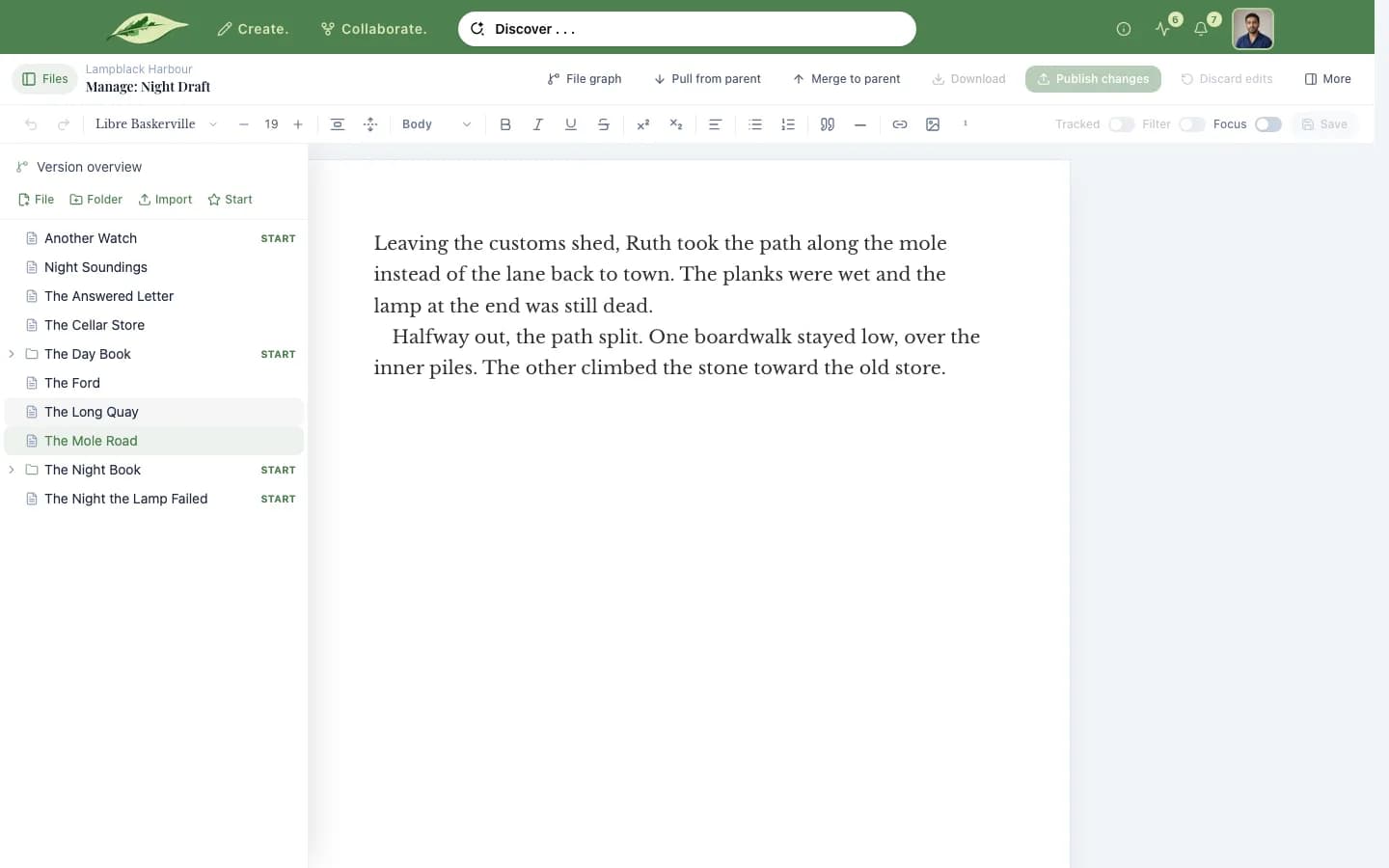
The Files panel lists the version's files and folders. Its first row, Version overview, shows everything you have not published yet.
- Create: File or Folder in the toolbar, or New file and New folder on a folder's menu, adds a row at the bottom of that folder. Type a name and press Enter; Escape cancels.
- Rename: F2, a double-click, or Rename.
- Move: drag a row, or use Move to… or Move to top level.
- Delete: Delete. Deleting a folder moves its contents to the top level.
- Find: Cmd/Ctrl+P opens Quick open. Reveal current file scrolls to the open file.
- Undo a file: Discard edits returns one file to its last published text.
- Order: Start sets the default order a reader starts in. Import adds Word files.
An icon marks each file you changed: green for added, yellow for modified, red for removed, orange for moved. A folder takes the mark of what is inside it. During a pull, an amber ! marks conflicts.
Writing and formatting
The formatting bar has:
- Paragraph style: Body, Heading 1 to Heading 3, and Small caps, which can combine with any of them. A check marks the current style.
- Marks: Bold (Cmd/Ctrl+B), Italic (Cmd/Ctrl+I), Underline (Cmd/Ctrl+U), Strike, Superscript and Subscript.
- Layout: alignment, bullet and numbered lists, blockquote, and scene break.
- Link, Image and Footnote. An image is a JPEG, PNG, WebP or GIF up to 5 MB, or a web address, with alt text and an optional caption. A footnote adds a numbered marker and a note at the end of the file.
Tab indents a paragraph. Your writing saves itself about a second after you stop typing; Save saves at once.
Other shortcuts: Cmd/Ctrl+P for Quick open, F2 to rename, Cmd/Ctrl+Shift+F
for focus mode, and [ and ] to move between conflicts during a pull.
Focus mode and display preferences
Focus above the page, or Cmd/Ctrl+Shift+F, dims every paragraph except the one you are writing in.
More → Display preferences sets how the page looks while you write:
- Font, Size, Lines and Paras.
- Theme: Light, Sepia or Dark.
- Changes: how tracked changes are drawn, as Inline, Highlight or Bars.
- Page: Paged, with a paper size and margins, or Continuous, with a width.
These settings stay in your browser. They do not change what readers see.
The More panel
More opens a panel on the right for the open file:
- Display preferences. See Focus mode and display preferences.
- Statistics: words, characters, reading time and readability.
- Narrative: the file's Previous and Next files. + adds one by name; the cross beside a file removes the link.
- Changes: the version's published changes. View this change opens a change's comparison, and Undo this change reverts it where that is allowed.
Tracked changes
In the editor, two switches compare the open file with the text it started from:
- Tracked marks insertions and deletions in place.
- Filter shows only the sentences that changed.
While either is on, the page is read-only. Turn both off to keep writing.
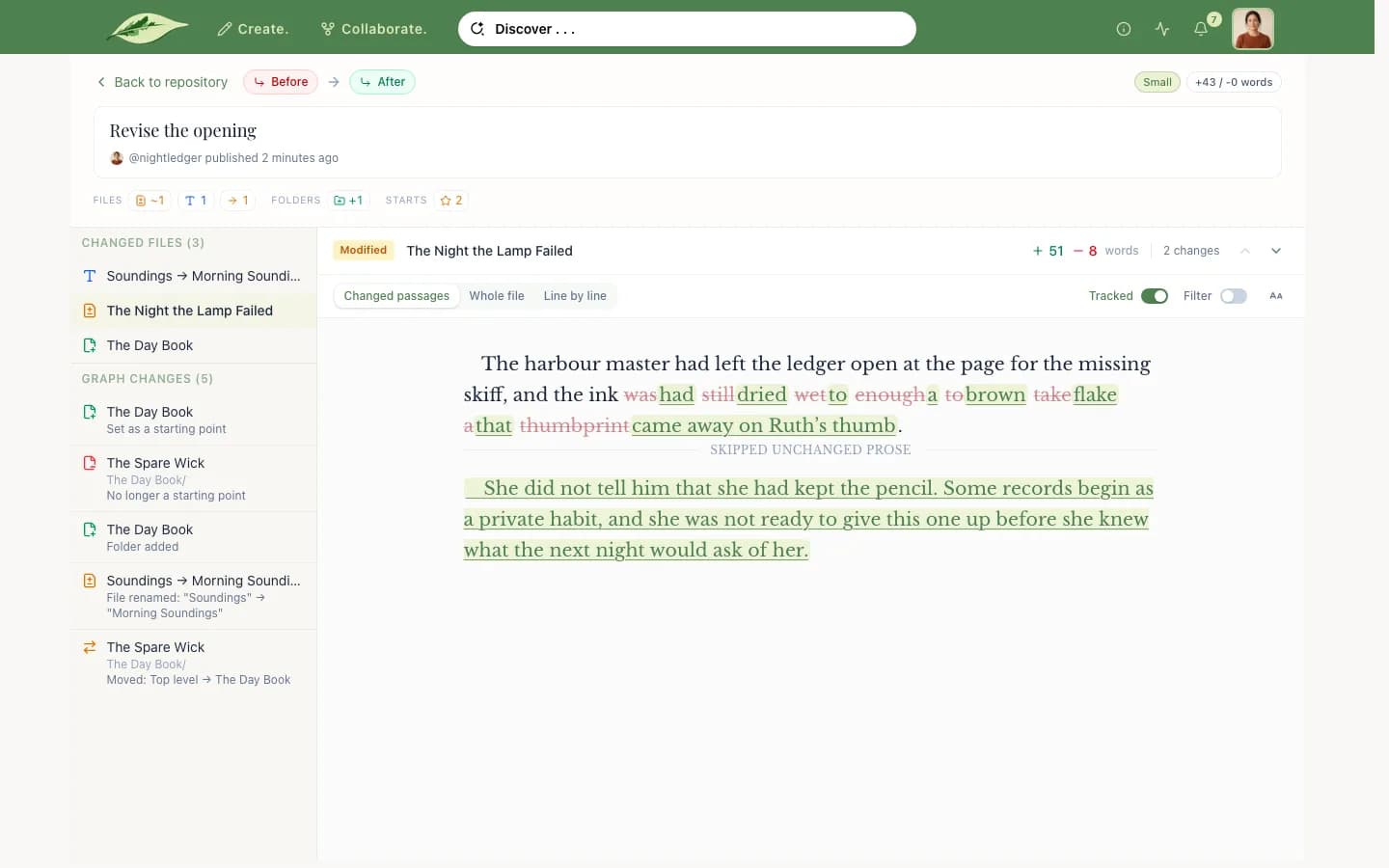
In comparisons (the Version overview, a merge request's changes, a change in the history), each file has three views: Changed passages, Whole file and Line by line. Turning Tracked off shows the final text without marks. Filter works as in the editor. A new empty line shows as ¶ New line, and a removed one as a struck ¶.
Aa sets the comparison's font, size, line spacing, width, and how changes are drawn.
Publishing and discarding
What you write saves to your version's draft. Only people who can edit the version see a draft; readers keep the last published text.
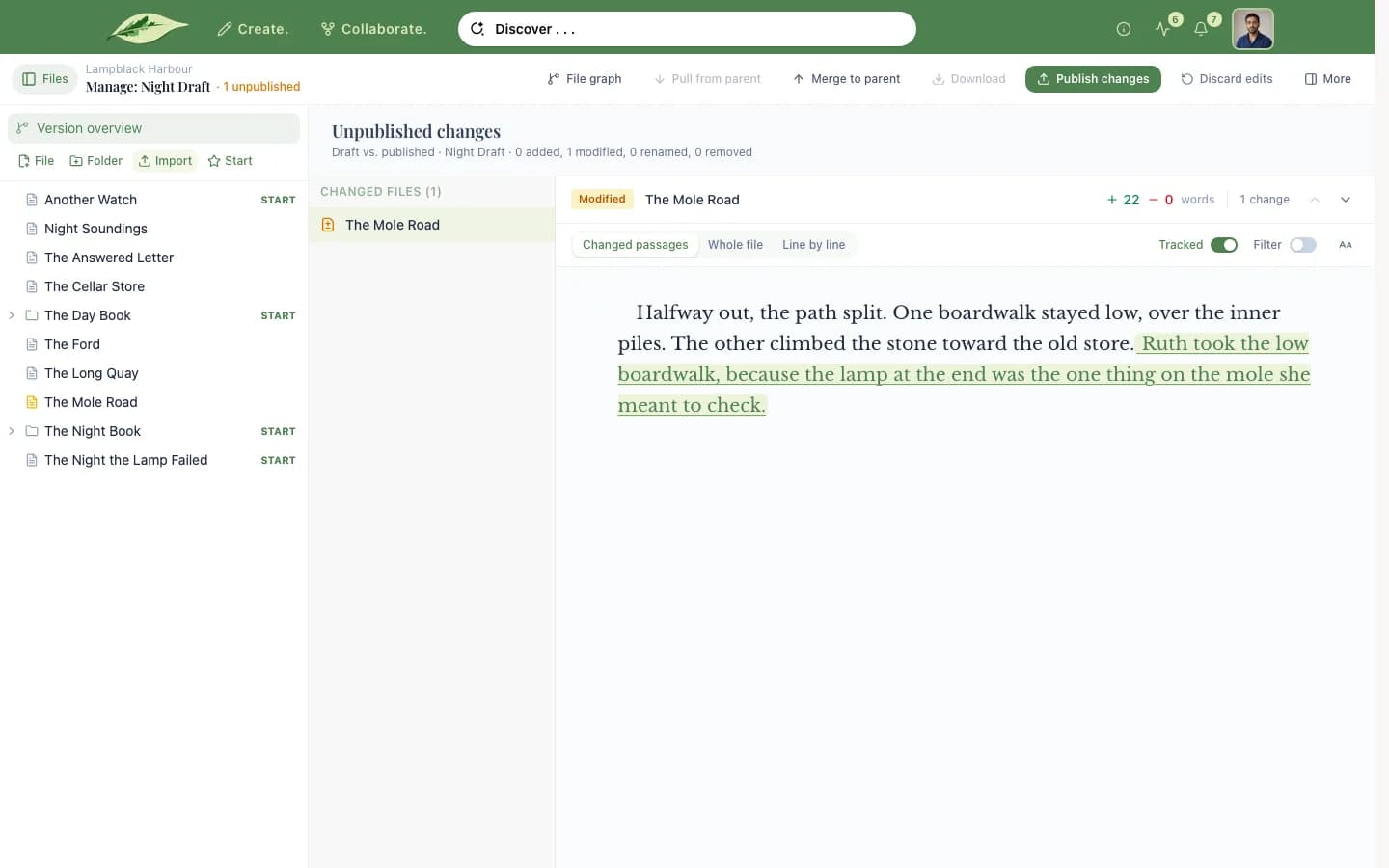
Version overview, the first row of the Files panel, lists every file added, modified, removed or moved since you last published, with its comparison.
Publish changes asks for a title and an optional description, then publishes. The draft becomes a change in the version's history, and readers of that version see it. Publishing often keeps each change small and easy to undo.
Discard edits in the header drops every unpublished edit and returns the version to what it last published. To drop one file's edits, use Discard edits on its menu in the Files panel.
The File graph
File graph in the header draws the version's files and the links between them, as in the reader. Folders open in place; choosing a file opens it in the editor.
To change the shape, set a file's Previous and Next files in the More panel, and where reading starts with Start in the Files panel. The graph follows.
Versions
Copies of a work that people edit side by side.
In this section
- Canon and versions
Parents, children, and the Canon.
- Creating a version
The New Version form, and keeping it hidden.
- Hiding a version
Who can hide, who still sees it, and restoring.
- Deleting a version
Who can delete one, and what happens to its children.
- Ahead and behind
What the two counts measure.
- The Version graph
Every version of a work as a tree.
Canon and versions
A version is a named copy of a work with its own files, draft and history. One person owns it, and only they edit it. Two people can try different openings, structures or translations at once without touching each other's text.
Every version except the Canon has a parent: the version it was made from. Its children are the versions made from it. The Canon is the work owner's main version, and the one readers get when they open the work.
Changes move between a parent and its children: up through merge requests, down through pulls.
Creating a version
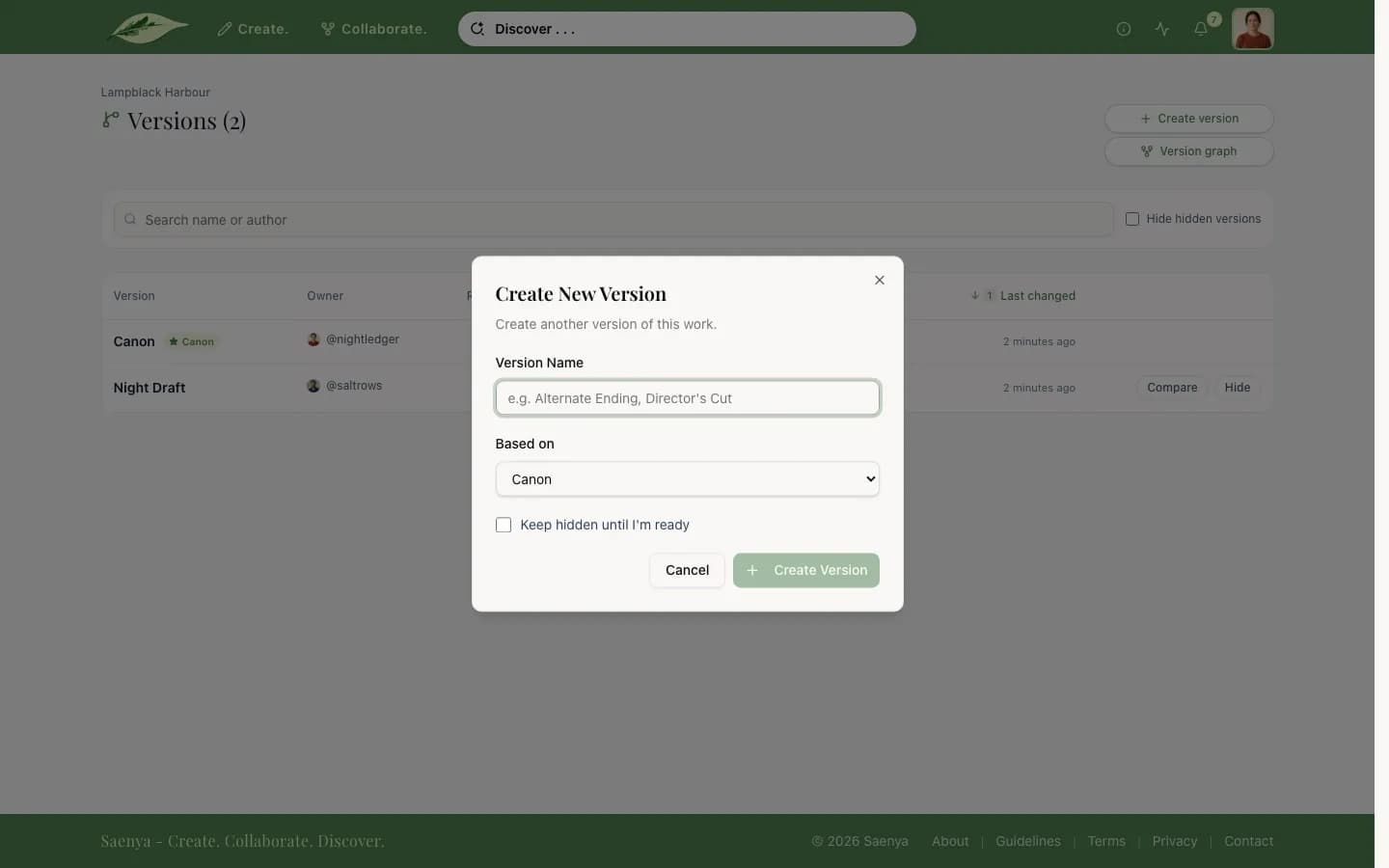
Version on a work page's rail, or the New Version tile on the Create page, opens Create New Version:
- Version Name, unique within the work.
- Based on, the parent. The new version starts as a copy of it.
- Keep hidden until I'm ready, which creates the version hidden.
Who may create versions depends on the work's Version control setting.
Hiding a version
Hide a version from the work's versions page (See all versions). The work's owner can hide any version except the Canon; a version's owner can hide their own.
- Who still sees it: the work's owner, the version's owner and Saenya's admins. Everyone else loses it from lists, the Version graph, search and its page. It shows a Hidden badge to those who can see it.
- What happens: nothing is deleted. Open merge requests from the version are declined; requests into it are left alone.
- Versions based on it: a checkbox can hide them too. A version owner's checkbox only reaches versions they also own.
Restore version lifts the hide. A version owner cannot lift a hide set by the work's owner ("Hidden by the work owner"). A hide set by a moderator can only be lifted by Saenya support.
Deleting a version
The work's owner and the version's owner can delete a version, except the Canon, with Delete version on the work page's rail. The version is hidden at once, and versions based on it are moved to its parent.
A deleted version is kept, out of sight, until a Saenya admin removes it for good or its owner's account is removed. Until then only an admin can restore it; you cannot undo the deletion yourself.
Ahead and behind
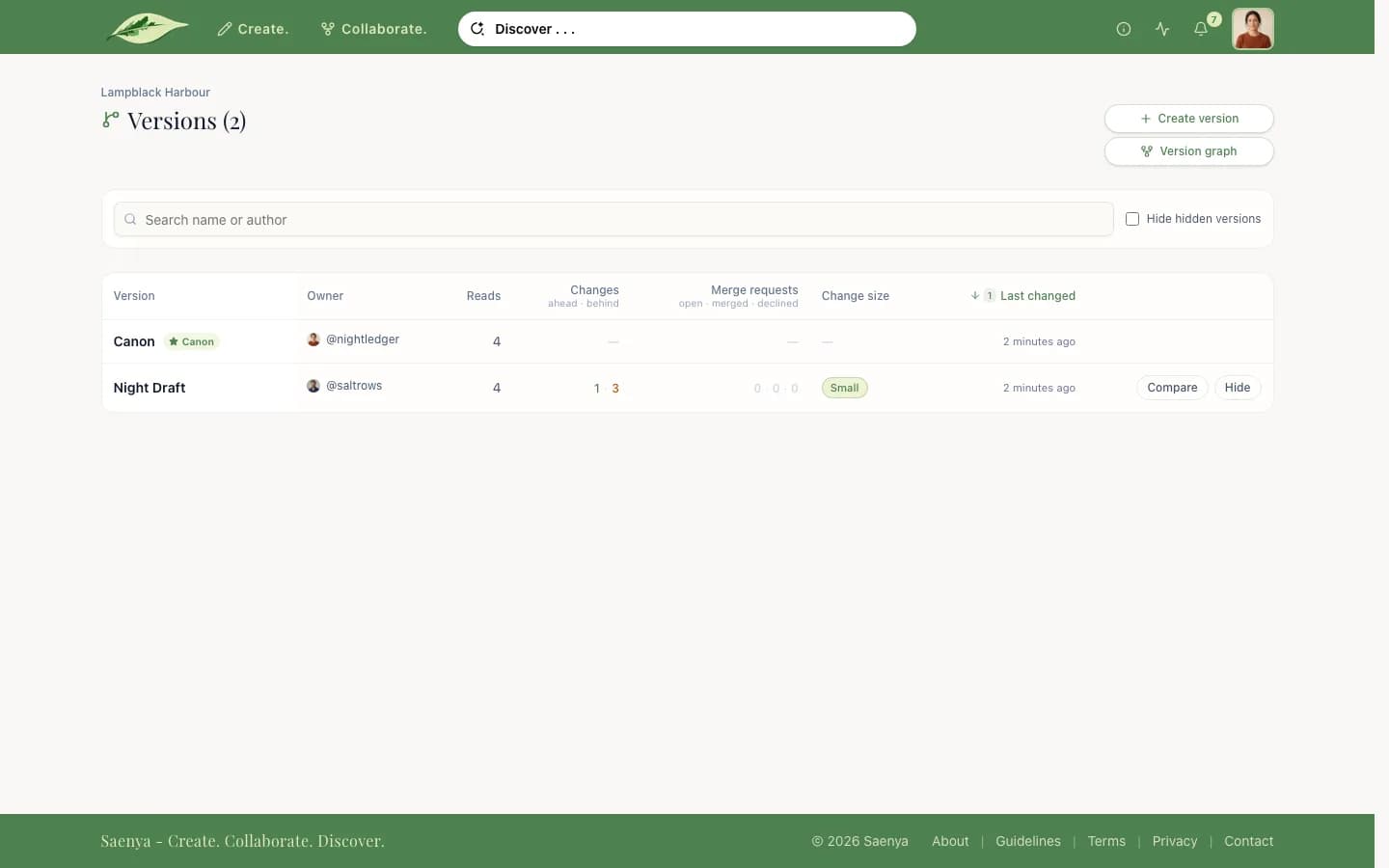
Each version other than the Canon is compared with its parent:
- Ahead: changes published on this version that its parent has not taken in yet.
- Behind: changes published on the parent since this version last pulled. Changes the parent took in from this version do not count.
The counts appear in the Changes column of the versions page, and at the top of a version's Changes tab on the work page.
The Version graph
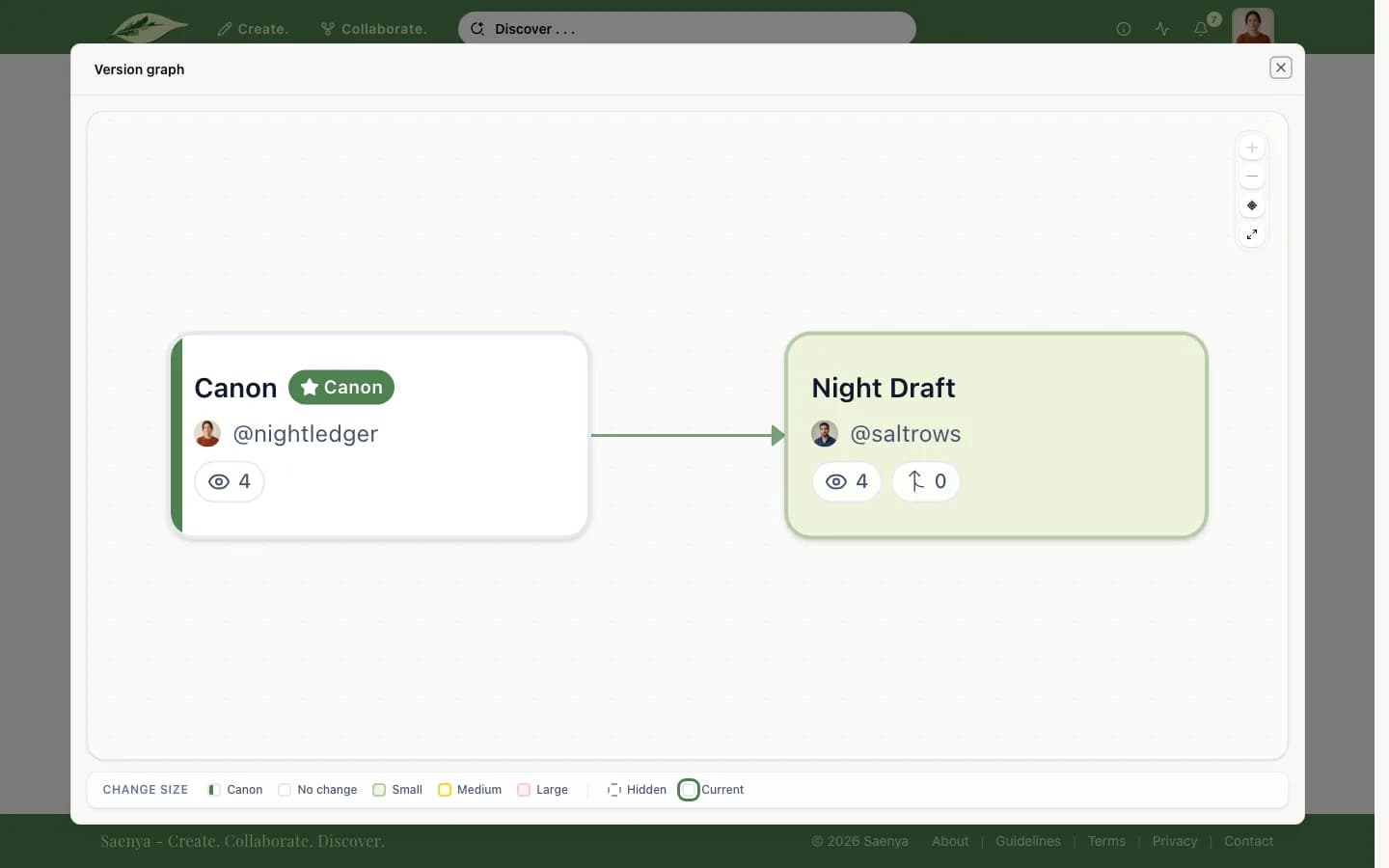
Version graph, on the rail's menu and on the versions page, draws every version of the work as a tree, from parent to child. The Canon is marked, colour shows how far each version has changed, a dashed outline is a hidden version, and a count shows open merge requests to the parent. Choosing a version opens it.
Collaborating
Moving changes between versions, and settling conflicts.
In this section
- How changes move
Merge requests go up; pulls come down.
- Proposing a merge
Opening a merge request, and the request page.
- Reviewing a merge request
Accepting, editing before merging, and declining.
- Pulling from the parent
Quick pulls, pulls staged in your draft, and publishing.
- Resolving conflicts
Passage and structure conflicts, and moving between them.
- Conflicts in a merge request
Why the author settles them first, and how.
- History labels
What Merge, Pull and their variants mean.
- Reverting
Undoing a published change.
How changes move
Every version except the Canon has a parent, and changes travel along that link in two directions:
- A merge request takes a child's published changes up into its parent. The parent's owner decides.
- A pull brings the parent's newer changes down into a child. The child's owner does it.
Parent version
Its owner accepts merge requests
Merge request
The child proposes, the parent decides
Pull
The child takes the parent's newer changes
Child version
Its owner pulls and proposes
Only published changes move. Drafts stay where they are. When both sides changed the same passage, or reshaped the work differently, Saenya stops and asks you to resolve the conflict.
Proposing a merge
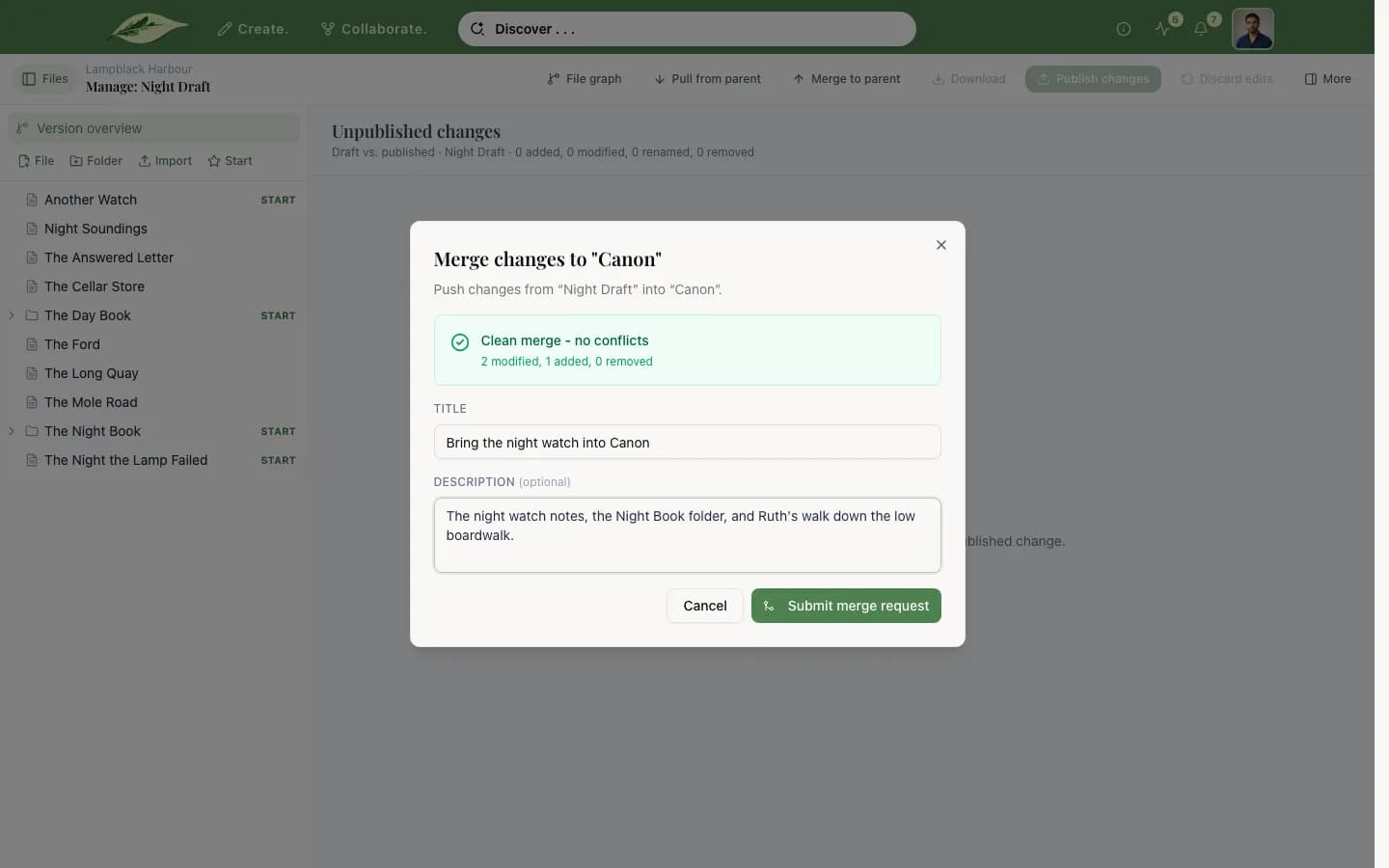
In the editor, Merge to parent opens the merge request form for your version:
- Title and an optional Description, saying what changed and why.
- A check of the merge: "Clean merge - no conflicts", or how many conflicts it found.
- Unpublished edits are not part of the request. Publish them first to include them.
Submit merge request opens the request's page. While a request is open, the editor's button reads View merge request.
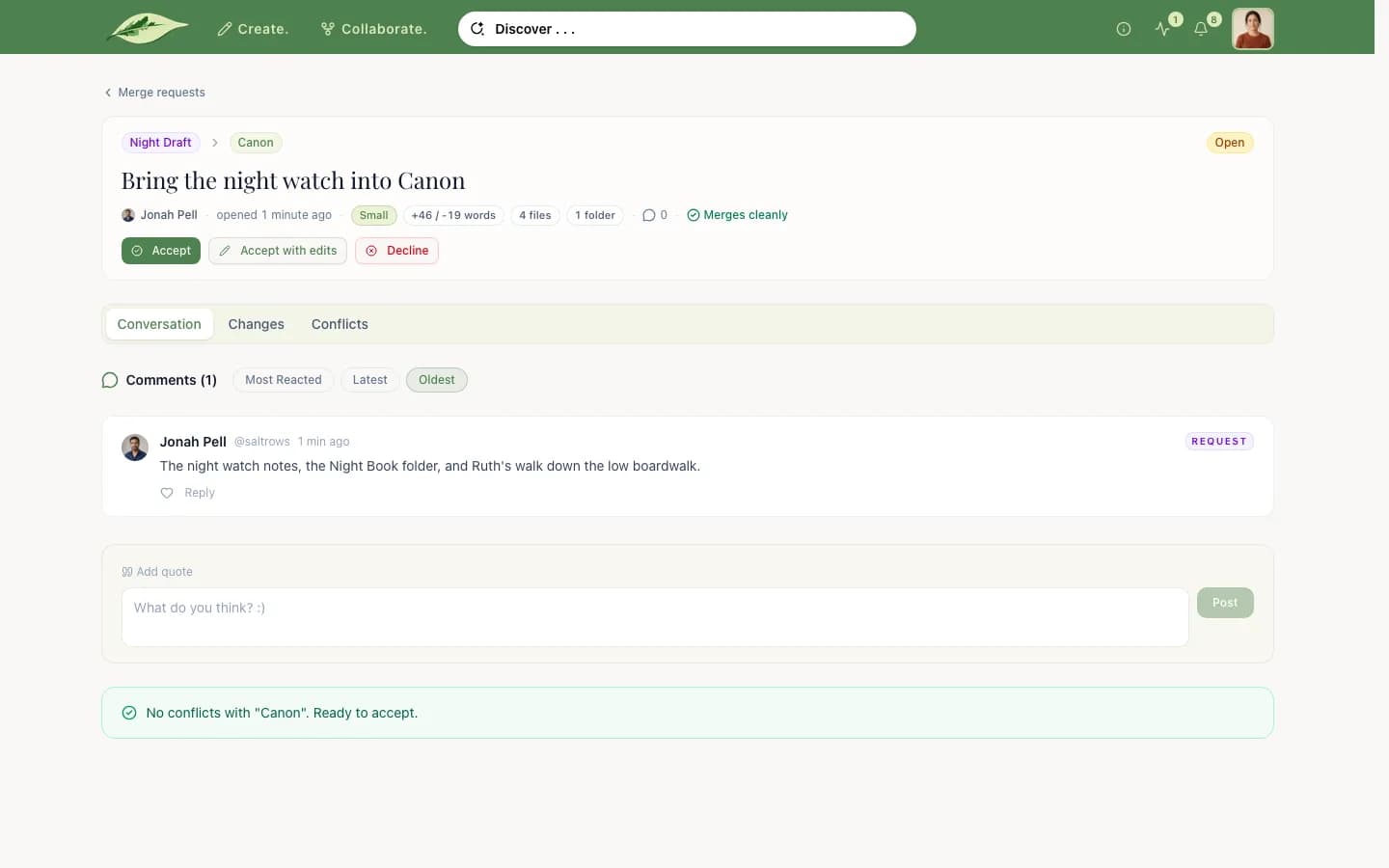
The request page shows the source and target versions, its status (Open, Merged or Declined), the author, the size of the change and whether it merges cleanly. Its tabs are Conversation, Changes and, when there are any, Conflicts.
Reviewing a merge request
The owner of the target version reviews the request; for the Canon, that is the work's owner. Discussion happens in the request's Conversation tab.
- Accept merges the changes as they are, with an optional note.
- Decline closes the request, with an optional note. The author's version is kept.
- Accept with edits opens the review editor, where you can change files before merging.
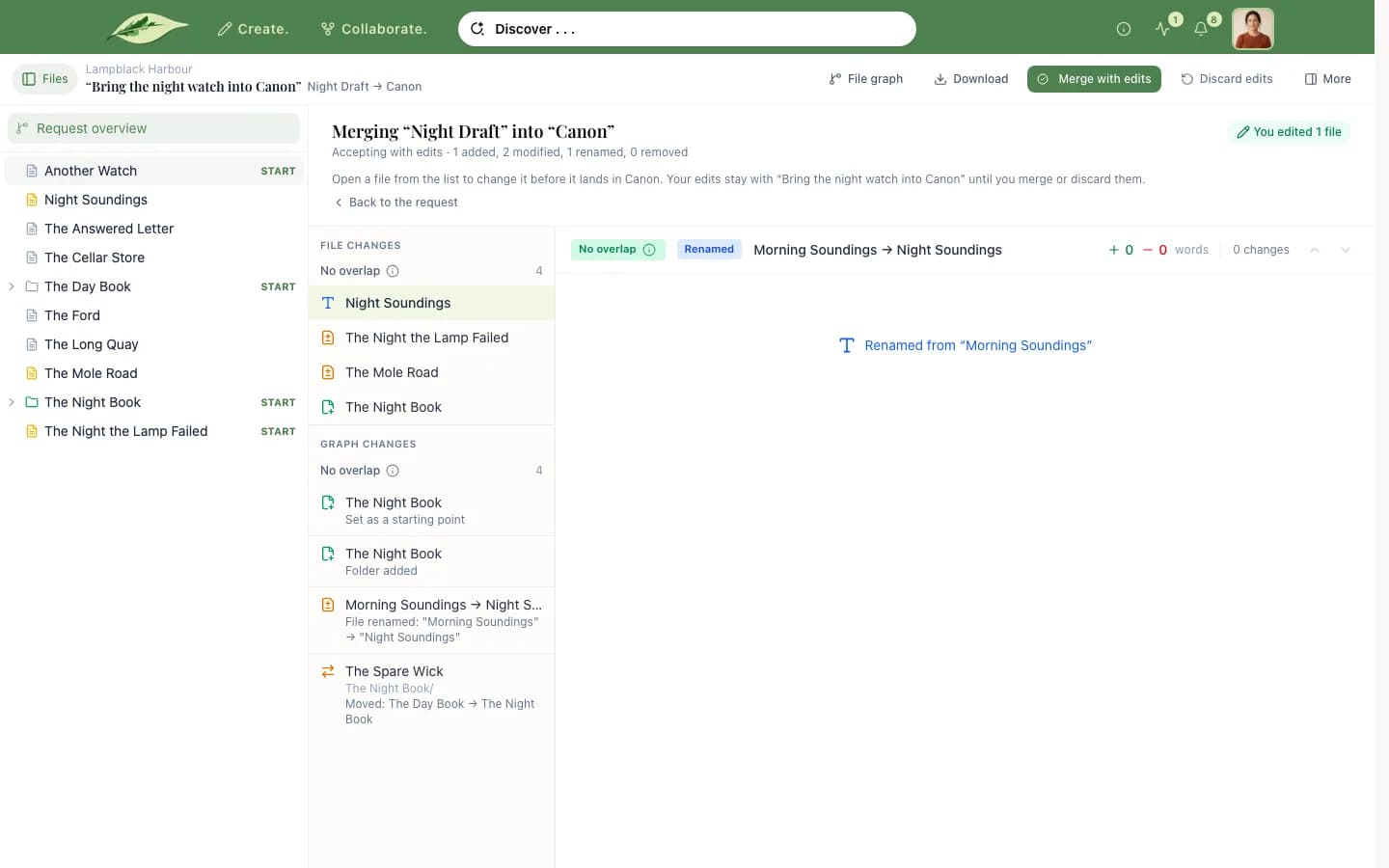
The review editor starts at Request overview, a summary of every change. The Files panel marks each file added, modified, removed or moved. Your edits save to your own review workspace: the target version's draft and the author's version stay as they were. You can review several requests at once; the target's editor shows "Review in progress" for each, with Continue and Discard edits.
The merge button reads Merge version, or Merge with edits once you have changed something. It waits while:
- The author's version or the target moved since you edited a file. That file shows "This file changed since you edited it." Choose Keep my edit or Use new merge.
- The target has unpublished changes. Publish or discard them first.
Pulling from the parent
Pull from parent in the editor brings your parent's newer changes into your version. It needs a clean draft: if you have unpublished edits, it says "Publish or discard your unpublished changes first".
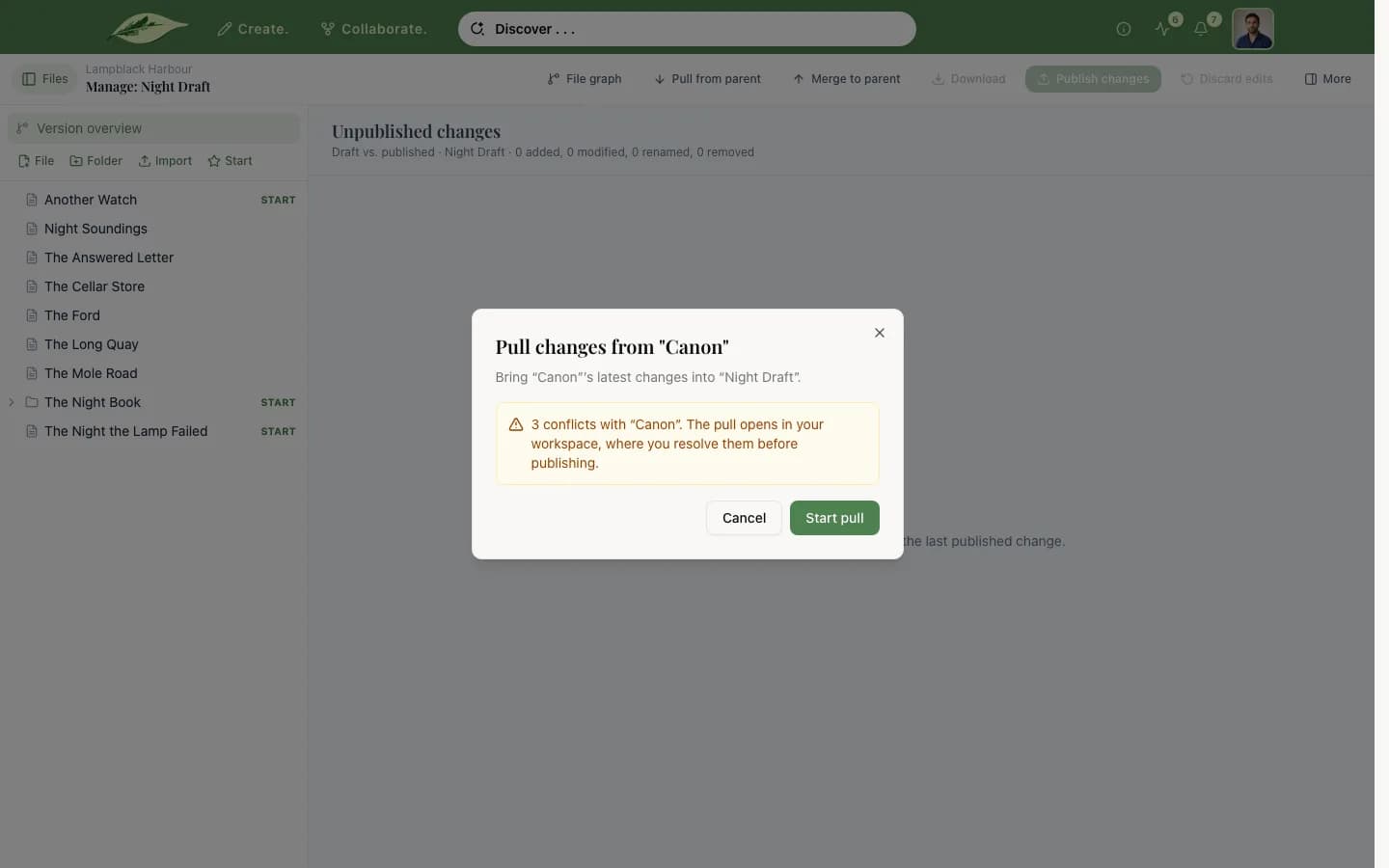
- No conflicts: Pull now pulls in one step. Review in workspace stages the pull in your draft first, so you can read and adjust it.
- Conflicts: Start pull stages it, with the conflicts marked.
A staged pull is your version's draft. The Files panel starts at Pull overview, and you can leave and come back to it. It stays pinned to the parent's latest change when you started: newer parent changes wait for your next pull, and the editor notes how many there are.
Publish pull publishes it once every conflict is resolved. The button previews its history label, such as Publish pull with modifications. Discard edits drops the pull and returns your version to its last published text.
Resolving conflicts
Saenya combines edits that do not overlap. When they do, you choose.
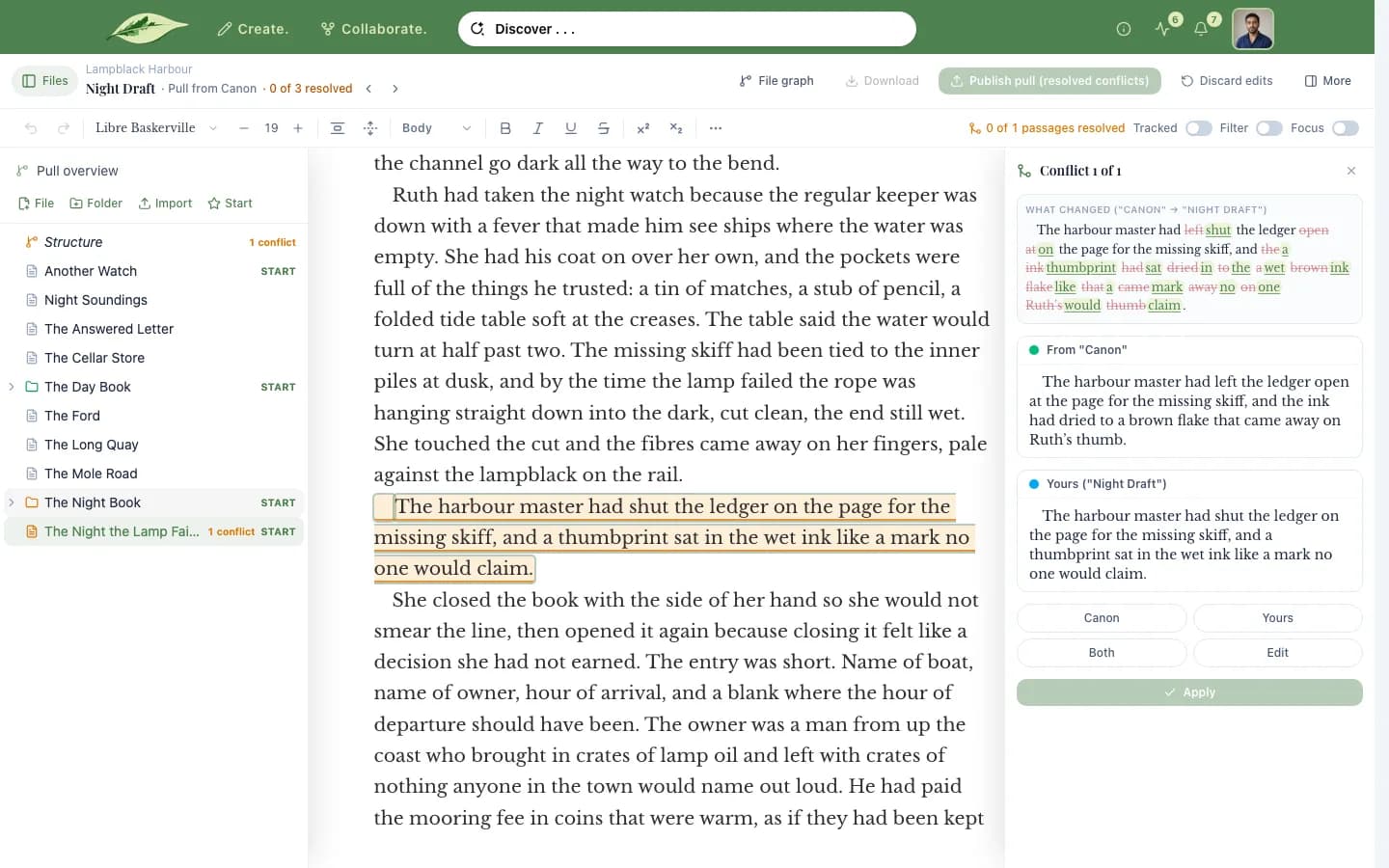
Passage conflicts. A file with a conflict opens in the resolver instead of the editor, with each conflicting passage highlighted. Choose a passage to open the Resolve panel, then keep the parent's text, Yours, Both, or Edit a new version of the passage. Once every passage in the file is settled, it opens as a normal file again.
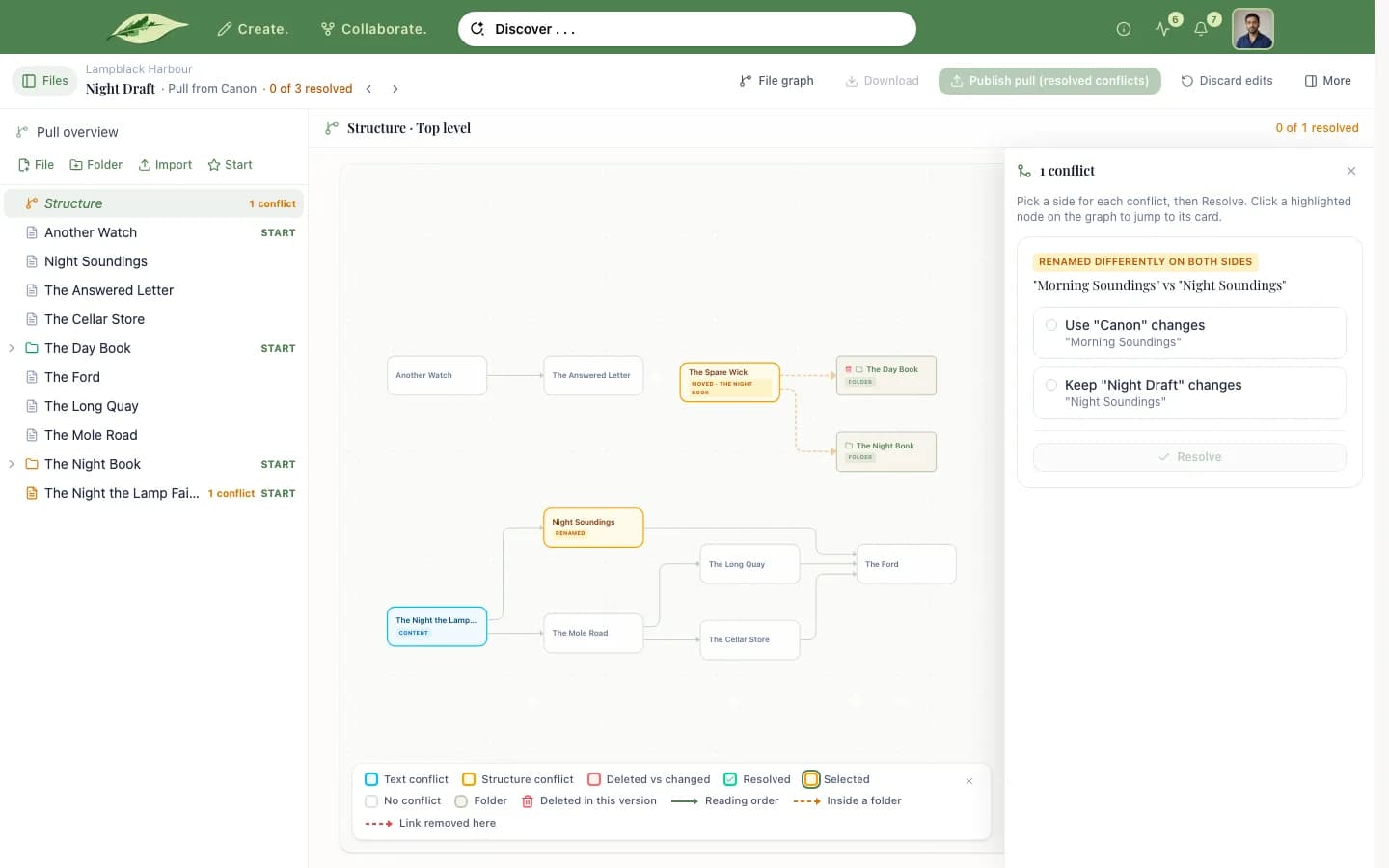
Structural conflicts. When both sides changed the shape differently, such as renaming the same file or moving it to different folders, a Structure row marked ! appears at the top of that folder. It opens choices like Use "…" changes or Keep "…" changes. Until it is settled, you cannot create, move or rename in that folder.
Getting through them. The header counts "N of M resolved", with previous
and next buttons; [ and ] do the same. Publish pull stays off, saying
how many conflicts are left, until there are none.
Conflicts in a merge request
A merge request with conflicts cannot be accepted. The reviewer sees "The author must resolve the conflicts first", and Accept with edits is not offered.
The author settles them with Resolve conflicts on the request. It starts a pull from the target into the author's version, where the conflicts are resolved as above. After Publish pull, the request merges cleanly.
History labels
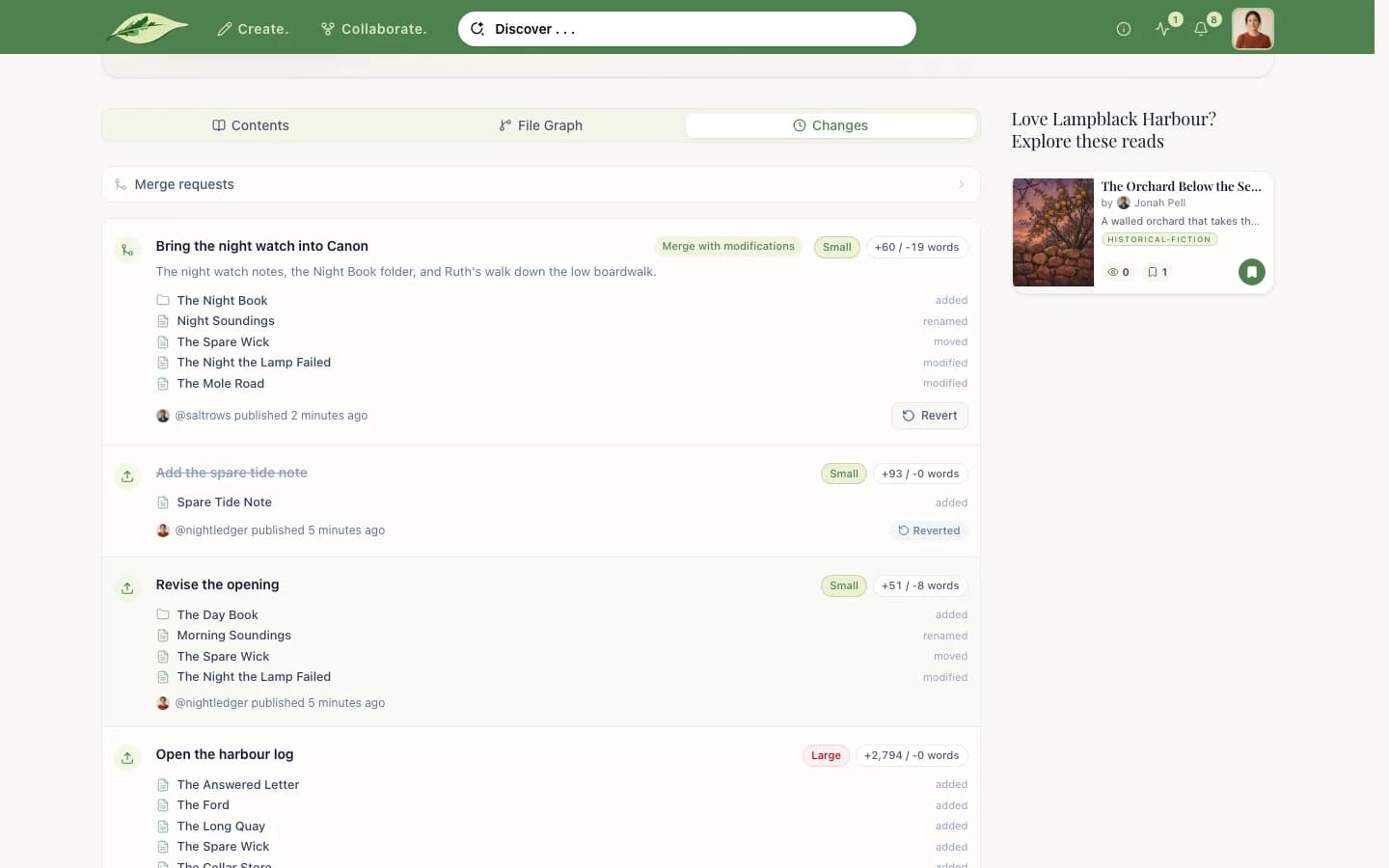
A version's history shows each change's title. Changes that came from another version also carry a label:
- Merge: a merge request, accepted as it was.
- Merge with modifications: a merge request the reviewer edited first.
- Pull: a pull with no conflicts.
- Pull (resolved conflicts): a pull whose conflicts were settled by choosing sides.
- Pull with modifications: a pull that was edited beyond choosing sides.
- Revert: an undone change.
Choosing the parent's text, yours or both is not a modification. Editing a passage in the resolver, or editing files during a review or a staged pull, is.
Reverting
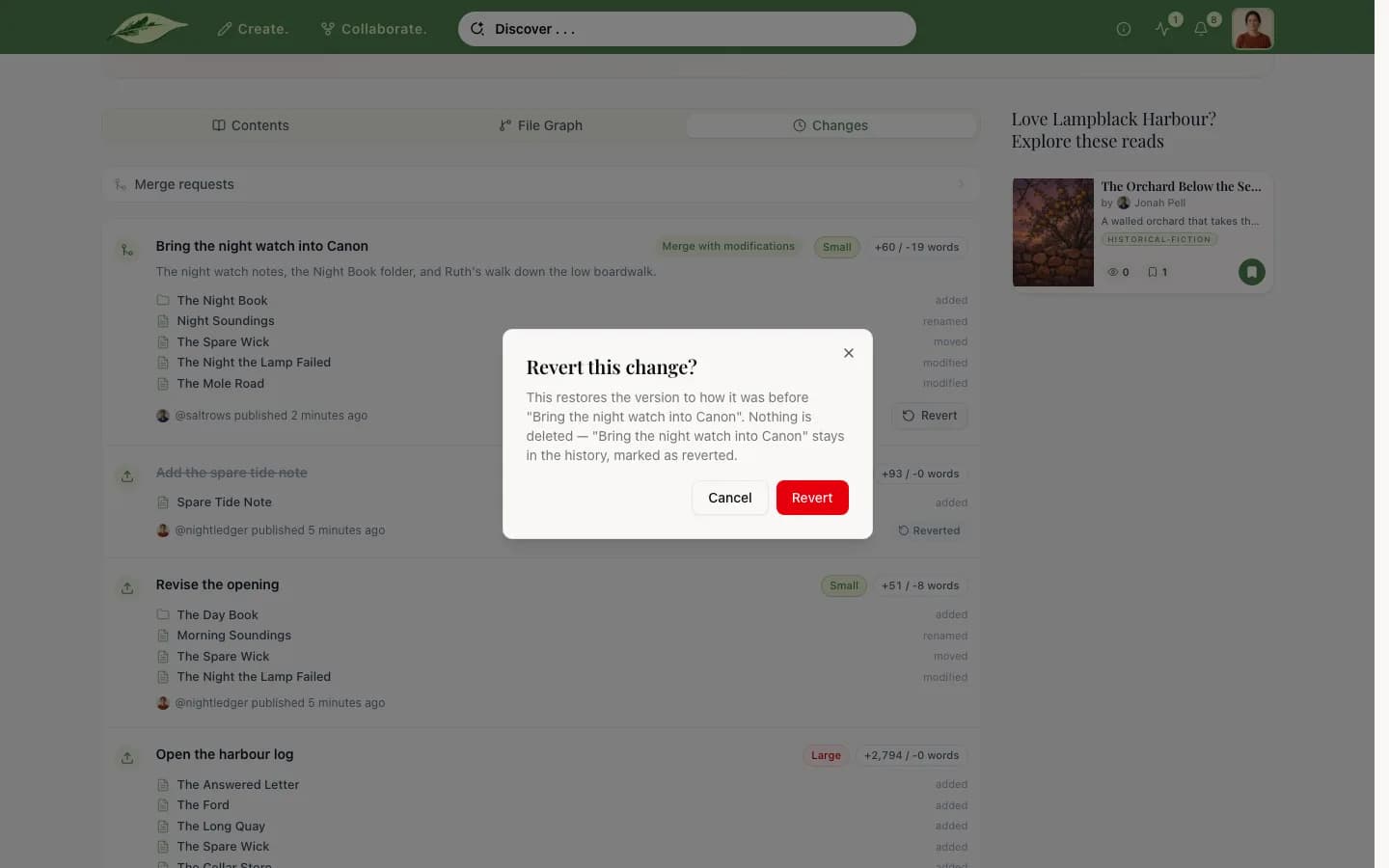
Revert on a change in the version's history undoes it. The version's owner can revert, and the work's owner can revert on the Canon.
Only the newest change that has not been reverted can be undone. To undo an older one, revert the newer ones first, newest to oldest.
Reverting adds a Revert change that returns the version to how it was before. Nothing is deleted: the original stays in the history, marked as reverted.
Create and Collaborate
The two pages that gather your work in progress.
In this section
- The Create page
Starting things, and work on what you own.
- The Collaborate page
Your work on other people's works.
The Create page
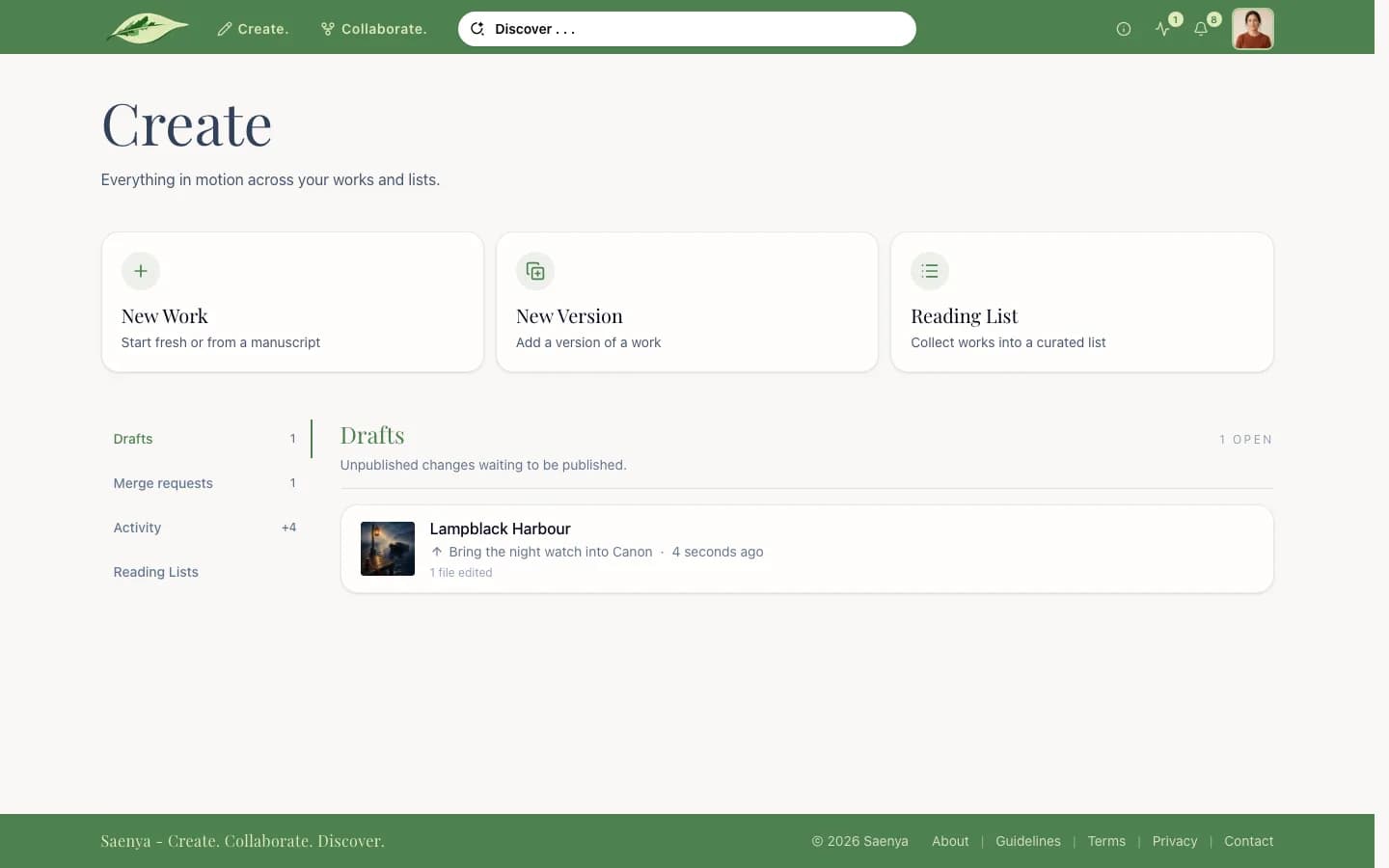
Create. gathers what is in motion across your works, versions and lists. Three tiles start something new: New Work, New Version (pick a work first) and Reading List. Below them, four tabs:
- Drafts: two kinds of row.
- A version with unpublished edits shows the size of the change, and Open returns to it in the editor. A staged pull also shows how many of its conflicts are resolved.
- A merge request review you have started shows how many files you edited. Its request title is the link back into the review.
- Merge requests: open requests into versions on your works.
- Activity: one row per version you own, with its latest events. +N on the tab counts events in the last 24 hours.
- Reading Lists: people asking to join your gated lists, with approve and decline buttons.
The Collaborate page
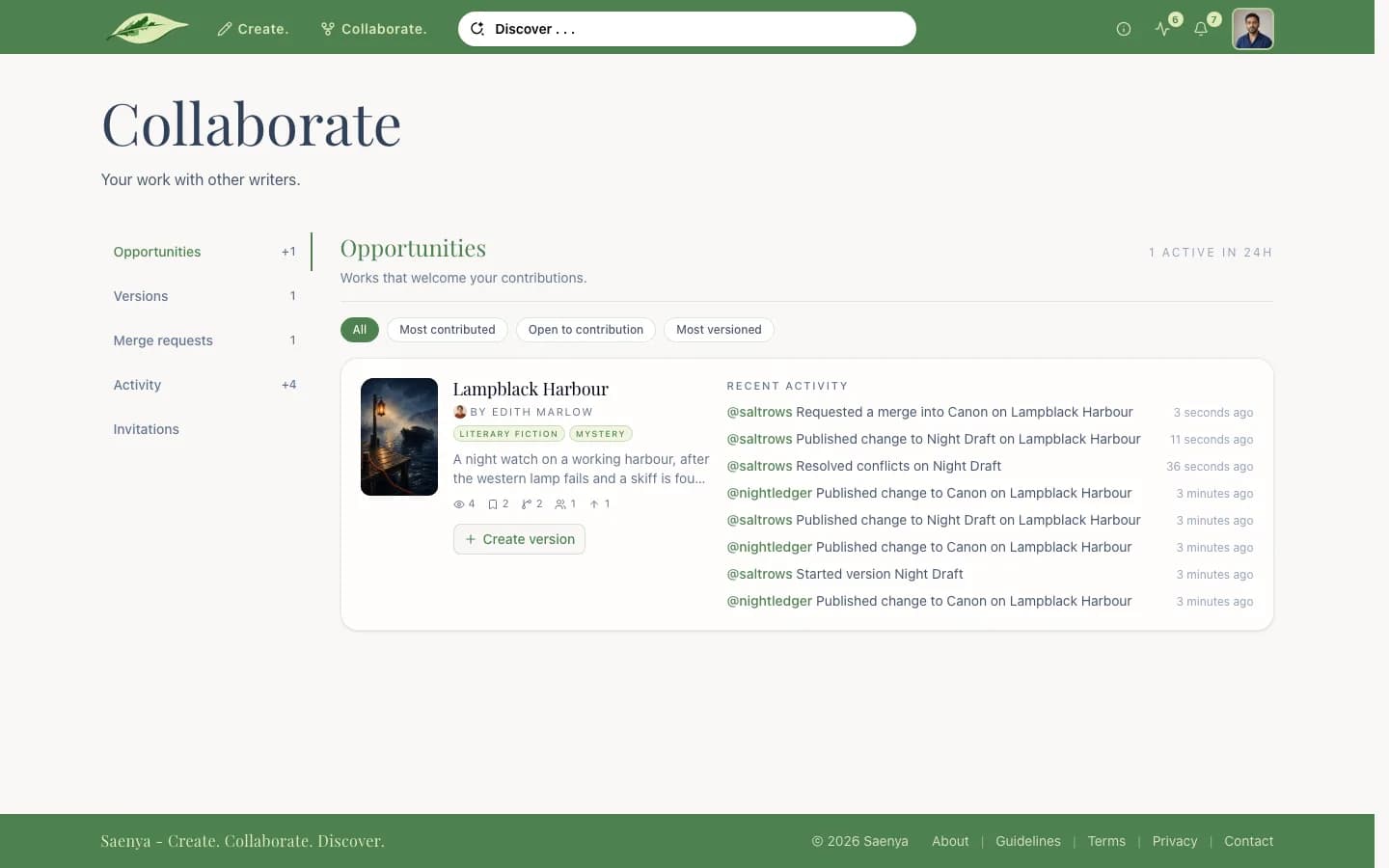
Collaborate. gathers your work on other people's works. It has five tabs:
- Opportunities: works that welcome contributions, each with its recent activity and Create version. Filter by Most contributed, Open to contribution or Most versioned. +N on the tab counts works active in the last 24 hours.
- Versions: the versions you are building on other people's works, how far ahead and behind each is, and whether it has a merge request. Edit opens one in the editor.
- Merge requests: the requests you opened, whether open, merged or declined.
- Activity: one row per version you own on other people's works. +N counts events in the last 24 hours.
- Invitations: reading-list invites to accept or decline, and works that opened version control to you, with Start a version.
Community
Your feed, your notifications, and reporting.
In this section
- Activity feed
What appears there, and from whom.
- Notifications
The kinds, how they arrive, and their settings.
- Reporting and moderation
What can be reported, and what happens next.
Activity feed
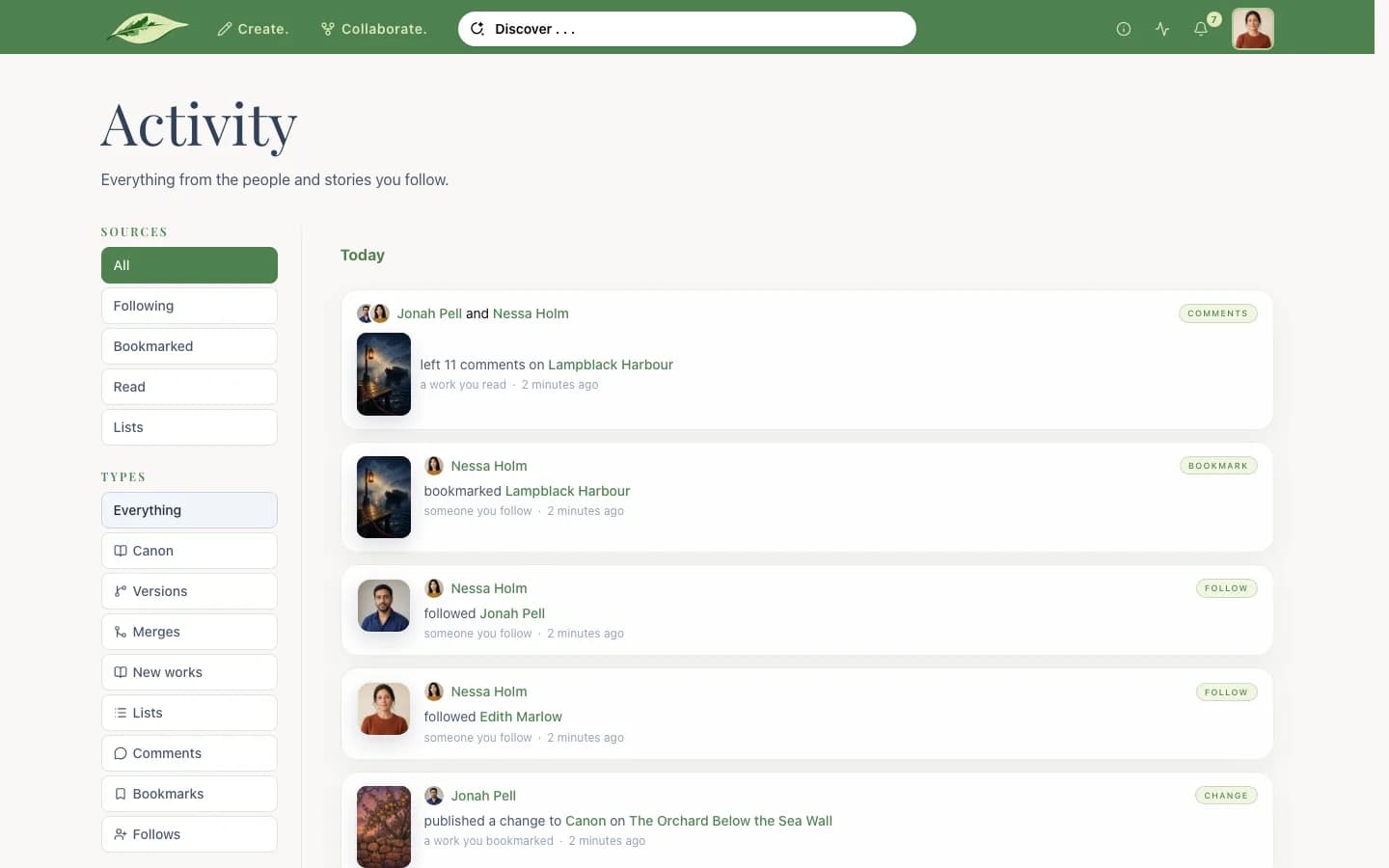
Activity in the navbar opens your feed: what other people did around you. It draws from people you follow, works you bookmarked or read, and lists you belong to. Your own actions are not in it.
It shows Canon updates and new files, new versions, merge requests and merges, new works, new reading lists and works added to them, comments, bookmarks and follows. Narrow it by source (Following, Bookmarked, Read, Lists) and by kind (Canon, Versions, Merges, New works, Lists, Comments, Bookmarks, Follows).
The navbar counts items you have not seen, until you open the feed. Settings → Activity feed turns kinds and sources off for good.
Notifications
Notifications are things aimed at you. They arrive as they happen, and the bell counts the ones you have not read:
- New followers.
- Comments and replies, and reactions to your files and comments.
- Merge requests: a new request into your version, and yours being merged or declined.
- New versions and Canon updates on works you own or contribute to.
- Bookmarks on your works.
- Reading lists: invitations, join requests, approvals and accepted invites.
- Moderation: your content being hidden, removed or restored.
Opening one goes to what it is about, such as the comment, the request or the list. Mark all as read clears the count. Settings → Notifications chooses in-app and email delivery for most kinds. Muted works stops comment and reaction notifications from a work you own.
Reporting and moderation
Works, versions, comments, reading lists and profiles each have a More menu with a Report item. Choose one or more reasons:
- Spam or advertising
- Harassment, abuse, or threats
- Sexual content
- Unmarked adult content
- Self-harm or suicide
- Plagiarism, copyright, or illegal content
- Impersonation
- Something else
You can add details, up to 1,000 characters. A moderator reviews the report and either dismisses it, hides the content, or deletes it. You are not told the outcome.
When content is hidden or removed, its author is notified with the reason, and can still see it. A moderator can restore it later. To appeal, write within 30 days through the contact form, under the Account topic.
Privacy and safety
Who sees what, account security, and getting help.
In this section
- Visibility at a glance
One table of who can see each thing.
- Hidden and moderated content
Owner hides, moderator hides, and lifting them.
- Account security
Codes, trusted browsers, passwords and email.
- Deleting your account
What closing an account removes and keeps.
- Getting help
The contact form and the policy pages.
Visibility at a glance
| What | Who can see it | Set in |
|---|---|---|
| Public work | Everyone, signed in or not | Work settings → General |
| Private work | Its owner and the people with access | Work settings → General |
| Version | Anyone who can see the work | — |
| Hidden version | The work's owner, the version's owner and Saenya's admins | The versions page |
| Draft | Whoever can edit the version: its owner, or the work's owner for the Canon | — |
| Public · Open list | Everyone sees the books and the discussion; members post | List settings → General |
| Public · Gated list | Everyone sees the books; only members see the discussion | List settings → General |
| Private list | Its owner and its members | List settings → General |
| Profile Overview and Works | Everyone, showing the blocks and categories you choose | Settings → Profile |
| Profile Library | Everyone; Bookmarks and Memberships show by default, Reads is hidden | Settings → Profile |
| Profile Activity | Everyone; public works only by default, and only the kinds you allow | Settings → Profile |
| Activity log and notifications | Only you | — |
Account security
- Login codes: a password sign-in on an unrecognised browser needs a 6-digit code from your email. See Signing in.
- Trusted devices: Settings → Account → Trusted devices lists the browsers that skip the code, marks This browser, and can Remove any of them. Sign out everywhere ends every session.
- Passwords: at least 8 characters, rated at least "Fair". Changing your password signs out your other sessions; resetting it signs out all of them.
- Email: changing your address sends a confirmation code to the new one, and the change only happens once you enter it.
Deleting your account
Settings → Danger zone → Close account closes your account after you confirm.
- Your profile is hidden at once, and the works you own can no longer be opened.
- Your follows, bookmarks, reading progress, reactions, notifications and reading lists are removed.
- Versions you made on other people's works are deleted, except those that have been merged.
- Comments, merged versions and other contributions on other people's works stay, credited to deleted_user.
- After 30 days your account, the works you own and the versions deleted with them are removed for good. What stays under deleted_user is not removed.
- Until then, Saenya support can restore the account and its works. Follows, bookmarks, reading lists and the rest of the removed items do not come back.
Getting help
The contact form reaches the Saenya team, signed in or not. Pick a topic (General, Bug report, Account or Copyright), then write a subject and a message.
The rules and policies are on their own pages, linked in the footer:
- Content Guidelines: what may be posted.
- Terms of Use: the agreement for using Saenya, including appeals.
- Privacy Policy: what Saenya collects and why.